Editing in ArcMap > Creating new features
Using the snapping environment |
|
|
Release 9.1
Last modified January 25, 2006 |


Print all topics in : "Creating new features" |
About the snapping environment
The snapping environment can help establish exact locations in relation to other features. Suppose you're creating a new segment of primary that begins from an existing transformer; you want to ensure that the vertex of the primary connects precisely to the transformer. The snapping environment makes this type of task accurate and easy.
The snapping environment can also be used to move a feature to a precise location in relation to another feature. For example, you can move a parcel and have one of its corners jump, or snap, precisely to a corner of another parcel. Simply move the parcel's selection anchor to its corner vertex after setting the appropriate snapping properties. Then move the parcel toward its new location until the selection anchor snaps to the corner vertex of the other parcel.
Setting the snapping environment involves setting a snapping tolerance, snapping properties, and a snapping priority.
The snapping tolerance is the distance within which the pointer or a feature is snapped to another location. If the location being snapped to (vertex, edge, or endpoint) is within the distance you set, the pointer automatically snaps to the location. The circle around the pointer represents the snapping tolerance. When the location being snapped to is outside the snapping tolerance, the snapping location stays with the pointer. When the location being snapped to is inside the snapping tolerance, the snapping location moves away from the pointer and snaps to the target location.
You can add the Snap Tolerance tool to any ArcMap toolbar from the Editor category on the Commands tab of the Customize dialog box. To set the snap tolerance with the Snap Tolerance tool, click the map and drag the mouse pointer to draw a circle. When editing, press the T key to see the tolerance circle.
You can set an explicit snap tolerance value in map units or pixels on the General tab of the Editing Options dialog box (click Editor, then click Options).
You can choose to display the layer name or target being snapped to by enabling SnapTips. To see SnapTips, check Show SnapTips on the General tab of the Editing Options dialog box. A small text box will appear when snapping, which identifies the layer you have snapped to.
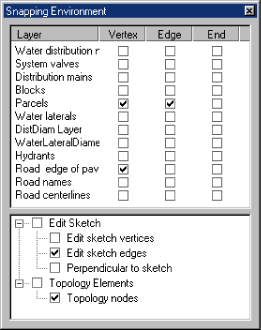
You can choose the part of the feature, vertex, edge, or endpoint to which you want your new feature to snap by setting the layer snapping properties. To make your new feature (a segment of primary) snap to the vertex of an existing transformer in the transformers layer, check the box under Vertex and next to the transformers layer in the Snapping Environment window. When the pointer comes within the snapping tolerance of the transformer, the first vertex of the primary snaps to the vertex of the transformer.
Snapping to edit sketch and topology elements
You can also set snapping properties that apply specifically to an edit sketch or topology elements. These properties are located at the bottom of the Snapping Environment window.
Checking the Edit sketch vertices box allows you to snap to vertices in the sketch. With Edit sketch edges, you can snap to the edge or boundary of segments in the sketch. You can check Perpendicular to sketch to snap to a 90-degree angle from the last segment in the sketch. To snap to topology elements, check the box next to Topology nodes.
View a table of snapping properties
The snapping priority
You can also set the snapping priority for layers on your map. The order of layers listed in the Snapping Environment window determines the order in which snapping will occur. Snapping occurs first in the layer at the top of the list, then in each consecutive layer down the list. You can easily change the snapping priority by dragging the layer names to new locations.
Apart from the rules set in the Snapping Environment, you can also snap on the fly to specific features. This is done through the Snap to Feature command of the sketch context menu.
By specifying a feature and the part of the feature to which you wish to snap, your next vertex will automatically be placed regardless of the Snapping Environment settings.
How to use the snapping environment
Setting the snapping tolerance
- Click the Editor menu and click Options.
- Click the General tab.
- Click the Snapping tolerance dropdown arrow and click the type of measurement unit you want to use for snapping tolerance—pixels or map units.
- Type the desired number of measurement units in the Snapping tolerance text box.
- Click OK.
| Tips |
|
 .
.  to interactively modify the tolerance value applied to all snap agents. See 'The snapping tolerance', above, to learn more.
Setting the snapping properties
- Click the Editor menu and click Snapping.
- Check the snapping properties you want.
The Snapping Environment window appears.
The snapping properties are effective as soon as they are checked or unchecked.
| Tip |
|
Setting the snapping priority
- Click the Editor menu and click Snapping.
- Click and drag the layer names to arrange them in the order in which you want snapping to occur. (The first layer in the list will be snapped to first.)
The Snapping Environment window appears.
The snapping priorities you set are effective immediately.
| Tip |
|
Snapping to a specific feature
- Click the tool palette dropdown arrow and click the Sketch tool.
- Right-click the feature to which you want to snap your next vertex.
- On the dropdown menu, choose Snap to Feature.
- Click the part of the feature to which you want to snap the next vertex. The vertex will be placed at the nearest location that matches your selection.