Mapping and visualization > An overview of mapping and visualization
Symbols and styles |
|
|
Release 9.2
Last modified November 7, 2007 |


Print all topics in : "An overview of mapping and visualization" |
Layers are displayed using various types of symbols. Each type of symbol is managed as part of a style. An ArcGIS style is an organized collection of predefined colors, symbols, and map elements. The symbols that you pick from when choosing how to symbolize data are contained within a style. Styles help to define not only how data is drawn, but also the appearance and placement of map elements and other cartographic additions on your map.
Styles can promote standardization and consistency in mapping products for your application or organization. You can automate a lot of work if you can apply common symbols that are based upon feature codes in your GIS. Styles help you organize this content. Styles are also useful for sharing a common set of map elements, such as scale bars and north arrows.
Creating and editing symbols
The Symbol Property Editor dialog box is used to create and edit symbols. The general properties available include the type of symbol, the layers used in the symbol, the symbol size, and the symbol color, with additional options dependent on the type of symbol you're editing. When creating and editing symbols, keep in mind that the type and properties of symbols can affect how long it takes for your map to draw. For example, complex symbols, .bmp pictures, and halos can significantly impact drawing times.
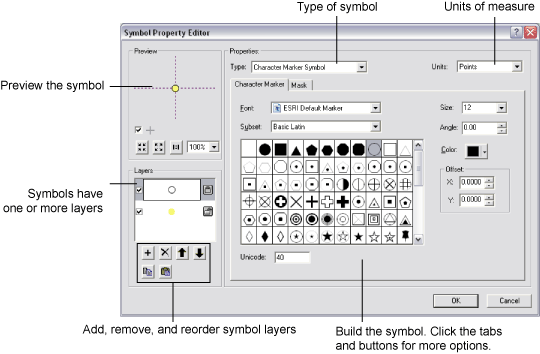
When drawing point features, you'll create marker symbols—for example, highway shields, well symbols, or simple point markers for city locations. Lines are displayed using line symbols, composed of layers, colors, and patterns. Polygons are drawn using line symbols for their outlines and fill symbols for their interiors. Text symbols are defined and used for various labeling and annotation drawing tasks. They are also used for displaying text within legends, titles and text on layouts, and labels on grids and graticules. Text symbols are defined by font, color, size, and style properties, and advanced text effects such as halos and masks.
Using the Style Manager
The Style Manager is the tool used to create new styles and edit existing ones. The Style Manager lets you browse and organize styles and the symbols and map elements they contain. You can cut, copy, paste, rename, and modify any symbol or map element contained in a style to which you have write access. In addition, you can create new styles and new symbols and map elements inside these styles.
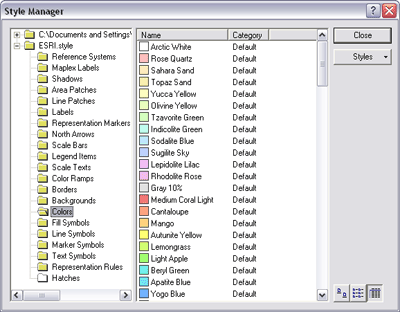
The Style Manager shows you the contents of all the styles that are currently referenced by your map. It also lets you reference additional styles and browse through them to see if you want to use their contents in your map. Use your personal style to store commonly used symbols for easy access and retrieval. This is the style into which custom symbols and map elements that you create when you use ArcMap are placed when you save them.
Drawing layers by matching them to symbol names or styles
The drawing of features can be referenced to specific symbols in a style. Individual symbol names can be associated with feature attribute codes in your feature classes to automatically assign map symbols. In the example below, land-use types in a study area are matched to symbol names in a style.
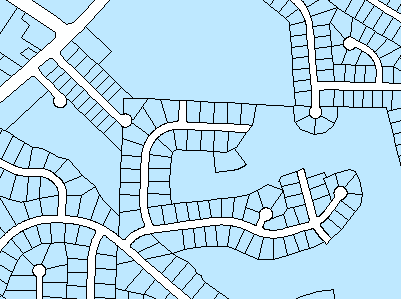
- When you first add the parcels layer to ArcMap, all the polygons are symbolized the same way, as a solid blue fill with a black outline. Using a single symbol, you can see where the features are, but you don't know the specific land-use type for each polygon.
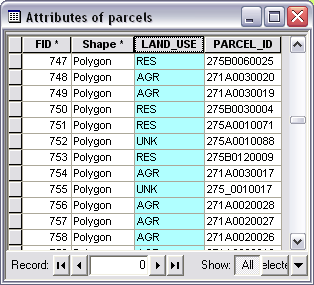
Here is the attribute table of the parcels layer with the LAND_USE field selected. The land-use codes have been abbreviated in the table; for example, RES is residential, AGR is agricultural, and UNK is unknown. You can use the codes in the LAND_USE field to symbolize the polygons, so you can see exactly where each land-use type is located in the study area.
You can create a style that contains the symbols you want to use to draw each land-use type. If you give each symbol a name that corresponds to the land use to be symbolized with it, ArcMap can automatically match the attribute values to the proper symbols. For example, all features that have been classified as agricultural will be drawn using the agricultural symbol (in this example, with a green polygon fill).

Now, when displayed on the map, the parcels are drawn using the matched symbols.
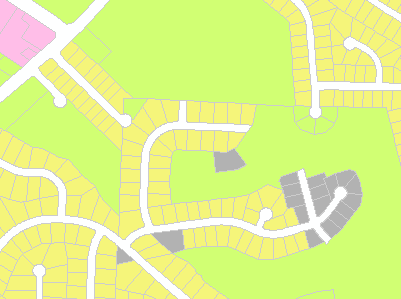
Matching attributes to symbols in a style is one way of displaying categories of features. For more information, see Drawing features to show categories.
Common tasks with symbols and styles
| Common task | Where to go for more information |
| Creating a style so you can reuse symbols and map elements
|
About styles
Creating new symbols and map elements |
| Using the same symbol to display all features in a layer | Drawing all features with a single symbol |
| Displaying features based on categories (unique values) or by matching attributes to symbol names in a style | Drawing features to show categories |
| Displaying quantities on a map (creating a choropleth, graduated symbol, density, or chart map) |
About symbolizing data to represent quantity
Drawing features to show quantities |
| Classifying quantitative data |
Setting a classification
Standard classification schemes |
| Working with the Style Manager | Organizing style contents |
| Creating symbols |
Creating line symbols
Creating fill symbols Creating marker symbols Creating text symbols |
| Using the color palette and mixing your own colors and ranges of colors (ramps) |
Working with color
Working with color ramps |