Show Navigation
|
Hide Navigation
You are here:
Extensions > PLTS > Creating features > Creating features using the Feature Builder > Creating features with the Feature Builder
Extensions > PLTS > Creating features > Creating features using the Feature Builder > Creating features with the Feature Builder
Creating two intersecting circles |
|
|
Release 9.2
Last modified August 28, 2007 |


Print all topics in : "Creating features with the Feature Builder" |
Related Topics
About the Circle Circle Intersection function
The Circle Circle Intersection function creates two overlapping circles. The circles are created based on two individual coordinates and radii that are defined.
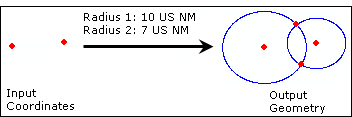
The input parameters for the Circle Circle Intersection function are as follows:
| Parameter name | Description |
| Radius 1 | The radius of the first circle |
| Radius 2 | The radius of the second circle |
Tips
- Though there are default units of measurement for the Radius 1 and Radius 2 parameters, you can right-click these parameter names and change the units of measurement used.
- If you change the units after defining a value for a radius, the value is converted to the new units of measurement. Due to this you may need to redefine the value. For example, if you define a radius of 10 US nautical miles and change the units to meters, the value is converted from US nautical miles to meters.
How to create two intersecting circles
- If necessary, click the Launch Feature Builder button
 on the PLTS Feature Builder toolbar.
The PLTS Feature Builder window appears. - Choose Circle Circle Intersection in the list on the Functions tab.
-
Define a coordinate for the center point of the first circle on the Input tab in the Coordinates area.
-
Define a coordinate for the center point of the second circle on the Input tab in the Coordinates area.
- Click the cell next to Radius 1.
- Type a value for the radius of the first circle.
By default, this is measured in US Nautical Miles. - Click the cell next to Radius 2.
- Type a value for the radius of the second circle.
By default, this is measured in US Nautical Miles. - Click the Execute button
.gif) .
.
| Tips |
|
.gif) at the top of the PLTS Feature Builder window.
at the top of the PLTS Feature Builder window.