Extensions > PLTS > Validating data with GIS Data Reviewer > Configuring checks
Finding polygon overlaps and gaps that are slivers |
|
|
Release 9.2
Last modified November 30, 2007 |


Print all topics in : "Configuring checks" |
About polygon slivers
When polygon features share a boundary and a space between the features along the boundary exists, it is considered a gap. For example, a gap might exist between a lake and grassland area. There can also be overlaps between features. For example, there could be a gap due to an overlap between a coastal water area and the foreshore due to an island. In both of these instances, the gap or overlapping area could be considered a sliver polygon.
Sliver polygons between polygon features often result from creating new polygons without using snapping or editing shared boundaries without a topology.
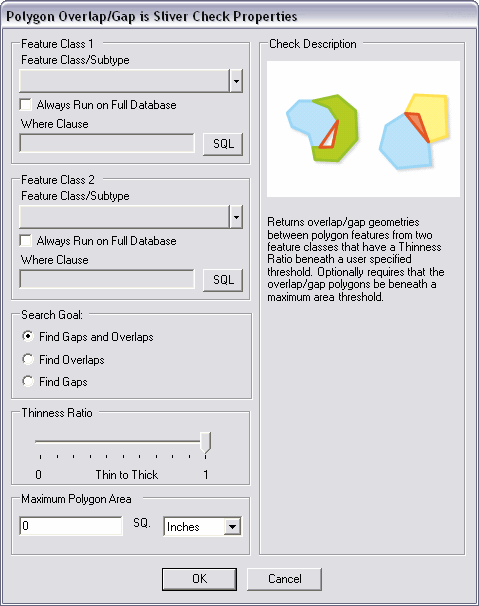
The Polygon Overlap/Gap is Sliver check finds overlaps and gaps that can be considered slivers. You can choose to find both gaps and overlaps, only gaps, or only overlaps. The thinness ratio and polygon area can be used to define how large or small the gap or overlapping area can be in order for it to be considered a sliver. The check can be run on an entire feature class, a subtype, or a set of features selected using a SQL query.
How to find polygon overlaps and gaps that are slivers
- Click the drop-down arrow on the PLTS GIS Data ReViewer toolbar, click the plus sign next to Feature on Feature Checks, then click Polygon Overlap/Gap is Sliver Check.
The Polygon Overlap/Gap is Sliver Check Properties dialog box appears. - Click the Feature Class/Subtype drop-down arrow in the Feature Class 1 area and choose the feature class and subtype on which to run the check.
- To run the check on the entire feature class and save this setting, check the Always Run on Full Database check box.
- To run the check on specific features in a feature class, click SQL to construct a SQL query.
- Repeat steps 2–4 in the Feature Class 2 area.
- Choose what types of conditions you want to search for slivers.
You can choose to search for both overlaps and gaps, only overlaps, or only gaps. - Move the Thinness Ratio slider to the position that best describes the thinness of a sliver polygon.
The farther right the slider is moved, the thicker the polygon must be to be recognized as a sliver. - Type a value for the maximum size of a polygon gap or overlap in the Maximum Polygon Area text box.
- Click the SQ drop-down arrow and choose the units of measurement to use with the maximum polygon area.
- Click OK.