Show Navigation
|
Hide Navigation
You are here:
Extensions > PLTS > PLTS for ArcGIS Aeronautical Solution > Working with annotation
Extensions > PLTS > PLTS for ArcGIS Aeronautical Solution > Working with annotation
Updating annotation background symbol colors |
|
|
Release 9.2
Last modified December 3, 2007 |


Print all topics in : "Working with annotation" |
Related Topics
About the Anno Background Symbol Color tool
- This tool updates the callout color for certain annotation features so they are correct according to the attributes of the annotation's linked feature.
- The tool is enabled in ArcMap with the DoD model when you are not in an edit session and layers are loaded in the document. If the tool is run in an edit session, you will need to refresh the edit session by saving the edits or exiting and reopening the edit session.
How to use the Anno Background Symbol Color tool
- Click the Update Anno Background Symbol Color button
 on the PLTS Aeronautical Annotation toolbar.
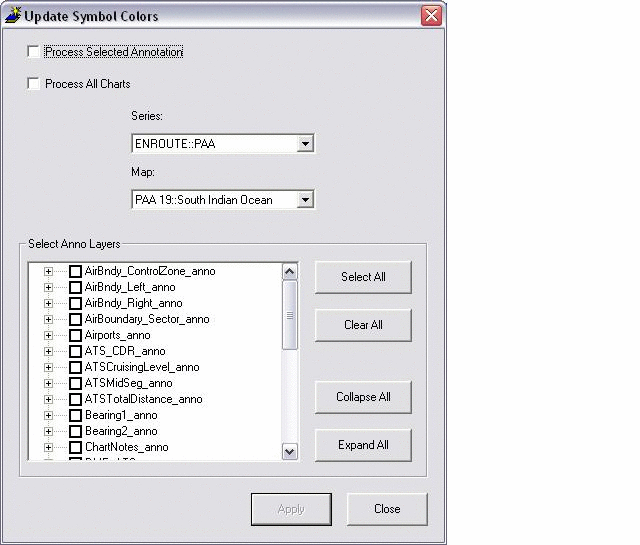
- Check the Process Selected Annotation check box to only update the annotation that is currently selected in the map.
- Check the Process All Charts box to run the tool on all charts.
- Click the Select Series drop-down arrow and choose a series.
- Click the Select Map drop-down arrow and choose a map.
- Check the check boxes next to the layers you want to process in the Select Anno Layers area.
- Click Apply to update chosen layers.
- Click Close when updates are completed.
The Update Symbol Colors dialog box appears.
You only need to process annotation feature classes that have a background symbol. In most cases the color of the background symbol is determined from the color of the text of the annotation.