Show Navigation
|
Hide Navigation
You are here:
Extensions > PLTS > PLTS for ArcGIS Defense Solution > Incorporating Geonames data into a geodatabase
Extensions > PLTS > PLTS for ArcGIS Defense Solution > Incorporating Geonames data into a geodatabase
Loading Geonames data into a database |
|
|
Release 9.2
Last modified August 23, 2007 |


Print all topics in : "Incorporating Geonames data into a geodatabase" |
About Geonames data
The Geonames data is loaded into both a feature class and a table. The feature class is comprised only of point features, and the table contains fields with information concerning the naming conventions used for the features. The feature class contains the unique feature identifier (UFI) and unique name identifier (UNI), which match the same fields in the Geonames table.
NOTE: Before you can load the Geonames data into your database, the feature class and the table must be generated.
How to load GeoNames data into a database
Loading the GeoNames feature class and table into an existing database
- Start ArcCatalog.
- Navigate to the PLTSGeoNames_Template.mdb file.
This file can be found in the $\Program Files\PLTS\Templates directory. - Copy the feature class and table in the PLTSGeoNames_Template.mdb file.
- Navigate to the database into which you want to load Geonames.
- Right-click the database and click Paste.
The feature class and table are added to your database.
Loading GeoNames data into the feature class and table
- Start ArcCatalog.
- Select the geodatabase you want to load the Geonames data into in the Catalog tree.
- Click the Load Geonames into a Database button
 on the PLTS Defense toolbar.
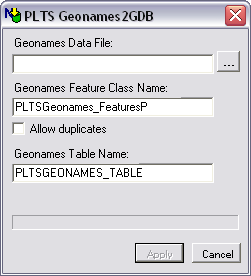
The PLTS GeoNames2GDB dialog box appears. - Click the Browse button next to the GeoNames Data File field.
- Navigate to the text (*.txt) file that contains the Geonames data.
- Click Open.
- Verify that the name in the GeoNames Feature Class Name field matches the name of your Geonames feature class in the database you are using.
For example, instead of "PLTSGeoNames_FeaturesP," the feature class might be named "GeoNames_FeaturesP." - To allow duplicate features in the feature class, check the Allow duplicates check box.
- Verify that the name in the GeoNames Table Name field matches the name of the GeoNames table in the data base you are using.
For example, instead of "PLTSGeoNames_Table," the table might be named "GeoNames." - Click Process.
As the GeoNames data is loaded into the feature class and table, the progress bar shows its status. - Click OK.
- Click Cancel once the process is complete.
A message box appears when the processing is complete.