Show Navigation
|
Hide Navigation
You are here:
ArcGIS Image Server > ArcGIS Image Server Clients > Image Server AutoCAD Client
ArcGIS Image Server > ArcGIS Image Server Clients > Image Server AutoCAD Client
Working with image services in AutoCAD |
|
|
Release 9.2
Last modified July 8, 2008 |


Print all topics in : "Image Server AutoCAD Client" |
About working with image services in AutoCAD
With the Image Service Manager dialog box, you can change the ordering in which the image services appear, remove image services, set the image service properties, zoom to view the overview of the image services, use the viewpoint functionality, and auto-refresh image services. To open the Image Service Manager dialog box click the Image Service Manager button  on the Image Server toolbar.
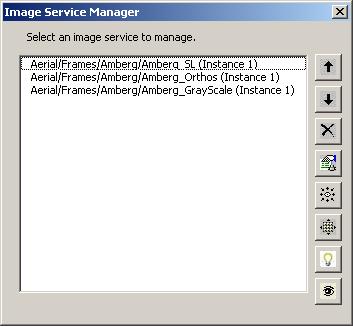
The buttons on the Image Service Manager are described below.
| Button | Title | Description |

|
Move Service Up | Moves the selected image service in the Select an Image Service to Manage list one level up. If an image service appears at the top of this list, it will be displayed on top of all the other layers in the display |

|
Move Service Down | Moves the selected image service in the Select an Image Service to Manage list down one level. |

|
Remove Service | Removes the selected image service in the Select an Image Service to Manage list. |

|
Set Service Properties | Enables you to edit the properties of an image service. |

|
Viewpoint | Enables you to change the order of multiple overlapping images in an image service, to view the same location from different angles or viewpoints. |

|
Zoom to Overview | Enables you to display image service at its full extent. |
 / /
|
On/Off | Toggles the automatic image refresh feature on or off, for the selected service. This is a toggle button that changes its on-screen view. |
 / /
|
Visibility On/Visibility Off | Turns the visibility of a service on or off. |
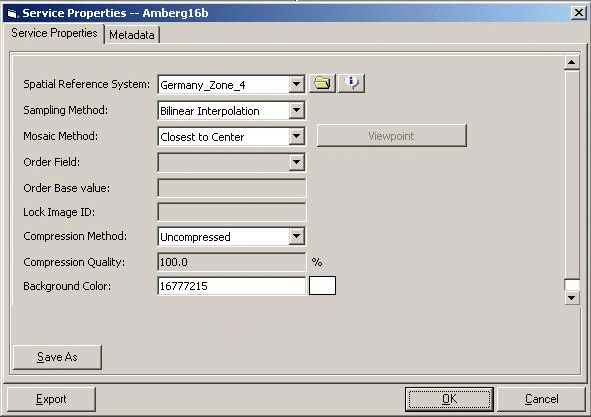
Some of the image service properties are set by the image service administrator; however, there are many properties that you can alter. These properties include the spatial reference information, the default sampling method, the mosaic method, a compression method, and a background color. The image service administrator can also control what properties the client can choose to alter. For example, you may not always get to choose Viewpoint mosaic method, because there are limited data sources this method can be used with, and the administrator can remove it from the choices given to the client.
The image service properties
| Field | Description |
| Spatial Reference System | Defines the spatial reference system based on which imagery should be displayed. Each request to the server is for an image based on a rectangular window in the specified spatial reference. Some client applications can define or redefine the required spatial reference. |
| Sampling Method | Defines the sampling method by which raster pixels are sampled by the server to match the resolution of client request. Depending on the application, the sampling method can be changed. More accurate radiometry values are obtained using the nearest neighbor sampling but can result in jagged edges of features. Bilinear interpolation provides smoother images but can result in some smoothing of the image. |
| Mosaic Method | An image returned to the client can be created from a number of input rasters. The mosaic method defines how the mosaic is created from different rasters.
|
| Lock Raster ID | The image is locked to a specified raster ID if the mosaic method is defined as Lock Image. This can be used to display by default only one raster in a service. The Raster ID is specified in the service table.
If you know the ID of the raster you want to lock, your can enter it here. Refer to step 9 in Viewing image service metadata in AutoCAD to learn about locking rasters. |
| Compression Method | Defines the method of compression in which to transmit the mosaicked raster data from the server to the client. If accessing the image services over a LAN, large data volumes do not cause a problem. However, when working over slower connections on the Internet, it would be better to apply a compression to the imagery before transmission. This compression reduces the size of transmitted imagery, but puts an additional load on the service provider to compress the data first.
|
| Compression Quality | Defines the quality of compression. A compression quality of 100% is the best. Values closer to 0 have very high compression ratios with little regard for quality. Values closer to 100 maintain visual quality while attempting to compress the image. A value of 100 may also indicate no loss in quality if using a lossless compression. |
| Background Color | Defines the default background color of the image service. Where there is no imagery, the specified color value is displayed. |
How to change image service properties in AutoCAD
-
Add an image service.
- Click the Image Service Manager button on the Image Server toolbar, to display the Image Service Manager dialog box.
- Click the Set Service Properties button , to display the Service Properties dialog box.
- Click the Service Properties tab and change any of the following properties.