Show Navigation
|
Hide Navigation
Inserting the Topo North Arrow surround element |
|
|
Release 9.2
Last modified August 23, 2007 |


|
About the Topo North Arrow
The Topo North Arrow is generated to match the USGS specifications. The style of the north arrow will vary based on which USGS map series you are building the map sheet from. The change in style is managed by the surround element itself; however, if alterations need to be made, the element can be ungrouped and altered by selecting the element, clicking Convert To Graphics, then click Ungroup to ungroup the elements. Perform the required edits, then regroup the elements by selecting them all and clicking Group.
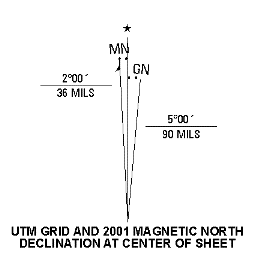
How to set the Topo North Arrow properties
Inserting the Topo North Arrow element
- Click the Insert menu, then click PLTS.
- Choose Topo, then NorthArrow.
A default North Arrow is generated that matches the USGS specifications.

Defining the Area tab
- Double-click the north arrow element.
The Properties dialog box appears. - Click the Area tab.
The Area tab appears. - Click the Area drop-down arrow and choose a unit of measurement for the area value.
- Click the Perimeter drop-down arrow and choose a unit of measurement for the perimeter value.
Configuring size and position
- Double-click the north arrow element.
The Properties dialog box appears. - Click the Size and Position tab.
The Size and Position tab appears. - Type a value in the X text box.
- Type a value in the Y text box.
- To use the position as an offset, check the As Offset Distance check box.
- Click a point you want to use as the anchor.
The default is the bottom left, but eight other positions can be selected. The anchor determines the alignment of an element when placement rules are defined. - Type a value in the Width text box.
- Type a value in the Height check box.
- If you want to use the values as a percentage, check the As Percentage check box.
The unit of measurement changes to percentages. - Type a name in the Element Name text box if you want to name the element.
This name displays as the new name of the Properties dialog box once you click OK, then re-open it.
Defining the USGS North Arrow tab
- Double-click the north arrow element.
The Properties dialog box appears. - Click the USGS North Arrow tab.
The USGS North Arrow tab appears. - Click the Grid North tab.
- Type the appropriate values for the Grid North component of the arrow.
Notice that the MILS value is automatically calculated; however, you can edit the calculated value. - Click the Magnetic North tab.
- Type the values for the Magnetic North Arrow.
The MILS value will automatically be calculated, but you can edit the calculated value - Click either the 1Zone or 2Zones option in the UTM Zones area, depending on your map sheet and the appropriate zone. The default value for the zone is dependent on the extent of your map sheet.
- Edit the zone default value if necessary.
- If you clicked the 2Zones option, the Right option becomes available in the Arrow area; click the Left or Right option.
- Type the appropriate year in the Year text box.
- In the Color area, click the color you want to use for the North Arrow.
- Click OK to generate your USGS North Arrow element.