Show Navigation
|
Hide Navigation
STEP 4: Laying out your schematic diagram |
|
|
Release 9.2
Last modified January 15, 2008 |


|
Related Topics
About laying out your schematic diagram
When a schematic diagram is opened, you can use the Schematics tools to lay out and refine your diagram.
NOTE: To work in multiviews, you can display the diagram in a Viewer window by activating the data frame that contains your diagram and clicking Window>Viewer. Then you can set your Geography as the active data frame and keep your active diagram in the viewer window at the foreground.
You can access the Schematics context-sensitive help in ArcMap at any time to get help with:
- A pull down menu command or toolbar button—Click the What's This? Help button and click the menu command or toolbar button.
- A control on a dialog box—Click the ? button on the dialog box and click the control.
The ? button isn't available on all dialog boxes. - A command on a shortcut menu (a menu that's accessed by right-clicking an object)—Highlight the command and press Shift + F1.
How to lay out your schematic diagram
- Click the Increase Symbol Sizes button
 or Decrease Symbol Sizes button
  as needed to adjust the schematic symbols.
- Choose one of the standard schematic layouts from the Layout Task drop-down list and click the Apply button
 .
.
The schematic elements contained in the diagram are automatically laid out according to the chosen layout algorithm. Adjust the layout parameters on the Layout Algorithm Properties dialog box by clicking the Layout Properties button - Use the ArcMap Full Extent button to automatically fit all the schematic elements in the schematic diagram data frame.
- Click the Edit/Move Schematic Elements button
 to enable the schematic elements move mode, select some schematic nodes, and move the mouse pointer to the desired location.
- Use the Move Vertex tool
 , the Add Vertex tool
  , or the Remove Vertex tool
  to move or lay out a schematic link.
- Click View and click Layout View.
The two data frames from your ArcMap TOC are both visible at the same time. - Move and resize each data frame so they don't overlap.
- Click the ArcMap Select Elements button and select the data frame that contains your schematic diagram.
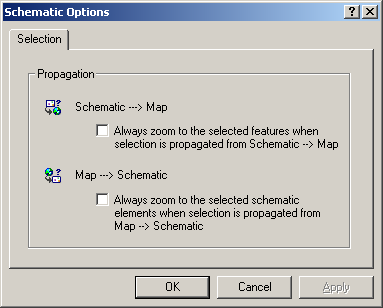
- Click Schematic on the Schematic toolbar and click Schematic Options.
The Schematic Options dialog box opens. - Click the Selection tab, check the box under Schematic-->Map, check the box under Map-->Schematic, then click OK.
- Click the ArcMap Selection menu and click Clear Selected Features.
- Click the Select Schematic Elements button
 and draw a box around part of the elements contained in your schematic diagram.
- Click the Propagate Schematic Selection To Map button
 to automatically propagate the active schematic selection set to the map.
The map centers automatically on the associated feature set. - Right-click the schematic diagram data frame entry in the ArcMap TOC and point to Activate.
This allows you to see the selection. - Click Schematic and click Save Diagram if you want to store your current schematic diagram layout.
- Close ArcMap.
 .
.
Alternatively, click the Select Features button to select a feature or a set of features in the map and click the Propagate Map Selection To Schematic button
 to highlight the corresponding schematic elements in the diagram.