Show Navigation
|
Hide Navigation
Mosaic Colormap Mode |
|
|
Release 9.3
Last modified March 8, 2012 |


|
NOTE: This topic was updated for 9.3.1.
The Mosaic tool allows users to mosaic raster datasets that may have colormaps associated to them. The tool even allows for users to mosaic raster datasets that may have different colormaps. When mosaicking the various colormaps together, the tool needs to know which colormap to use - especially if different colormaps exist. In order to determine the colormap conflict that may exist, there are several methods that you can choose from: reject, first, last, and match.When all the colormaps are the same, or if no colormaps exist, this parameter is optional. When colormaps exist in your mosaic, it is best set this parameter accordingly, so that you get the best results possible.
Reject
The Reject mode will not mosaic any raster datasets that have an associated colormap. In essence, raster datasets will be mosaicked, but the tool will ignore raster datasets that have a colormap; they will not be included in the mosaic process. Therefore if all your raster datasets have colormaps, no mosaic will actually take place.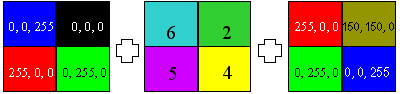
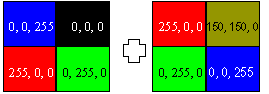
In the illustration above, there are three raster datasets that are to be mosaicked. The mosaic tool will attempt to mosaic the first two raster datasets together (left and middle). Since the middle raster has a colormap, the reject mode will ignore it, and simply mosaic the next raster dataset in the mosaic list (as shown below).
First
The First mode will use the first colormap in the list of raster datasets to mosaic. This is the default colormap mode.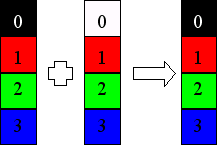
In the illustration above, the first colormap will be used, since it is the first one in the list. Therefore the colormap for all the raster datasets in the mosaic will the same as the first colormap. There will be no remapping of colormap values.
Last
The Last mode will use the last colormap in the list of raster datasets to mosaic.
In the illustration above, the last colormap will be used, since it is the last one in the list. Therefore the colormap for all the raster datasets in the mosaic will the same as the last colormap. There will be no remapping of colormap values.
Match
The Match mode will use a combination of all the colormaps. It will make sure that all colors that are unique, are represented in the final colormap (if the bit-depth allows for it). In the illustration below, the Match mode will match all the unique colors together. Since the value four (4), from the second colormap, is the same unique color as value three (3), from the first colormap, the final colormap will simply map all the values of four to the value of three. Similarly, all values of five (5), will be mapped to the value one (1), and the value six (6) will be mapped to the value of two (2). If there are new unique colors that are not already existing, the new color will then they will be appended to the end of the colormap; therefore the unique color for the value zero (0) will be appended to the end of the colormap.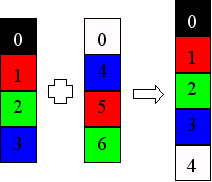
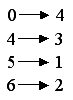
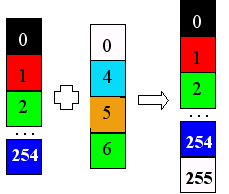
If the bit depth cannot accept any more new values, then some of the unique colors may not be represented. The example below is for 8-bit data, where there only values from zero to 255 are valid. As shown below, there are several values from the second colormap that need to be remapped to a new value in the final table. First, the value of zero (0) is remapped to the value of 255. The unique color for the value of four (4) would be mapped the next available unique value, but since the bit-depth is already full, it will now be mapped to the an existing unique color, that is closest in color; therefore it will be mapped to the value of 254. The value of five (5) will need to match an existing unique value as well; it will be mapped to the value of one (1). Since the unique color for value six (6) is the same as the value for two (2), the value 6 can be mapped to the value of two. Depending on your colormap, the new color that your value is mapped to, may not be so drastic. The drastic color differences in this example were used to differentiate the unique colors.