Data support in ArcGIS > CAD data > Georeferencing CAD data
Transforming CAD datasets |
|
|
Release 9.3
Last modified November 25, 2008 |


Print all topics in : "Georeferencing CAD data" |
About transforming CAD datasets
ArcGIS 9.2 introduced new techniques for transforming CAD datasets through the Georeferencing toolbar in ArcMap. In addition to supporting raster layers, the Georeferencing toolbar now supports transformation tools for CAD datasets. This new method allows you to transform your CAD datasets interactively with the use of your mouse pointer.
CAD transformations are based on the similarity transformation method. Similarity transformations are two-point transformations that support rotation and scaling. This means that only two control points or links are used to define the transformation, which will always preserve the aspect ratio (for example, uniform scaling).
You can use the Georeferencing toolbar to shift, rotate, and scale CAD layers with your mouse pointer. You can use the Fit To Display command to position your CAD layer in the current map extent. You can create control points interactively to define the source and destination coordinates of the transformation. And you can load and save transformation coordinates from and to world files.
The Georeferencing toolbar's Layer drop-down menu lists the available layers for georeferencing. If CAD layers and raster layers are in the map, you will see both layer types in the drop-down list. Since raster transformations differ from CAD transformations, you will notice that some menu choices and tools that are specific to raster layers are not available for CAD layers. On the Georeferencing menu, the Rectify, Transformation, and Flip Horizontal/Vertical menu choices are disabled. On the Link Table dialog box, no values will be reported for Residual and Total RMS Error, and the Transformation method drop-down box will be disabled. The rest of the tools and commands on the toolbar are available for use.
CAD transformations apply to the entire CAD dataset. If you have more than one CAD feature class layer in the map that derives from the same CAD feature dataset, you can use any one of the CAD feature classes for the transformation. Therefore, it doesn't matter which CAD feature class of the CAD feature dataset you transform; the transformation will apply to the entire CAD dataset. If you add additional CAD feature classes from a CAD feature dataset that was transformed, those newly added CAD feature classes will automatically be transformed.
All transformation operations will be applied to the target layer. The target layer is specified via the Georeferencing toolbar's Layer drop-down list. When you want to transform another layer in the map, you can choose a new target layer by clicking one in the Layer drop-down list.
An overview of the Georeferencing toolbar
The Georeferencing toolbar provides tools and commands for transforming CAD datasets. The toolbar contains a pull-down menu, a target Layer list box, tools, and access to the Link Table.
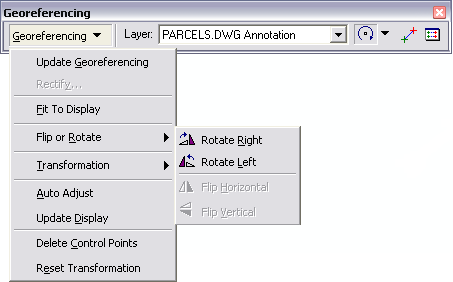
Georeferencing commands
The Georeferencing toolbar supports several menu commands for transforming CAD layers and managing control points. The Update Georeferencing command commits the transformation and generates a world file. This command represents the final step in the transformation process. Other commands, such as Fit To Display, offer a quick and easy way to move a CAD layer into your area of focus. Additional commands, such as Reset Transformation and Delete Control Points, provide means for canceling a transformation. Some menu and submenu commands, such as Rectify and Transformation, are not available for CAD layers. These commands only apply to raster layers.
- Update Georeferencing
- Fit To Display
- Flip or Rotate > Rotate Right
- Flip or Rotate > Rotate Left
- Auto Adjust
- Update Display
- Delete Control Points
- Reset Transformation
Georeferencing tools
The Georeferencing toolbar supports tools that allow you to shift, rotate, and scale a CAD layer. These are interactive tools that involve the use of the mouse pointer. Since these tools share the same tool palette, only one will be visible on the toolbar at any given time. To switch the buttons, click the tool palette drop-down arrow and click the desired tool.
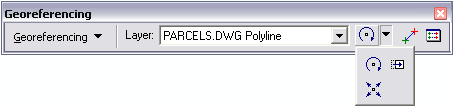
The Georeferencing toolbar also supports the Add Control Points and Link Table tools. The Add Control Points tool allows you to interactively create control points (for example, displacement links) in the map. The Link Table tool opens the Link Table dialog box. This dialog box is useful for viewing the coordinate values of control points and managing world files.
- Shift
- Rotate
- Scale
- Add Control Point
- Link Table
Shifting a CAD layer

Shifting a CAD layer requires that you hold down the mouse button and drag the CAD layer to a desired location. When you hold down the mouse button with the Shift tool, a rectangle that represents the extents of the CAD layer will appear in the map temporarily. The rectangle will move as you drag it. However, the CAD features will remain in the original location until you release the mouse button. Once you release the button, the shift will complete and the CAD features will display in the new location.
The following illustrations depict the Shift tool's workflow:
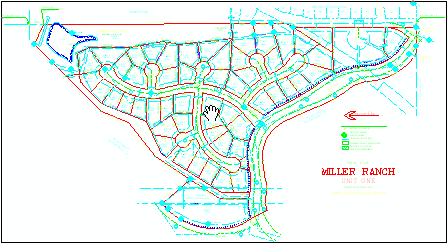
When the Shift tool is active and clicked on the map, the extents of the CAD layer are displayed. This is to provide a reference for repositioning the CAD layer.

Dragging the CAD layer to the desired location and releasing the mouse button will complete the process. Once this is done, the CAD layer will draw in its new location.
Rotating a CAD layer

Rotating a CAD layer requires that you hold down the mouse button and rotate the CAD layer to the desired orientation. As with the Shift tool, when you hold down the mouse button with the Rotate tool, a rectangle that represents the extents of the CAD layer will appear in the map temporarily. The rectangle will rotate as you move your mouse pointer. The CAD features will remain in the original location until you release the mouse button. Once you release the button, the rotation will complete and the CAD features will display in the new orientation.
The Rotate tool supports an anchor, which defines the axis of the rotation. By default, the anchor is located in the center of the CAD layer's extents (or the center of the rectangle that is displayed in the map). You can move the axis to a different location prior to rotation. To move the anchor, click the Rotate tool and pause on the centerpoint (the centerpoint will be denoted by an x). Once you are on the centerpoint, the mouse pointer will switch from the Rotate tool icon to a four-point arrow symbol. Click the mouse button and drag the anchor to the desired location. When you have reached this new axis location, release the mouse button. This is your new anchor location. You can then proceed with the rotation.
The following illustrations depict the Rotate tool's workflow:
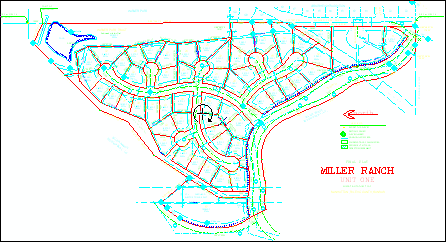
When the Rotate tool is active and clicked on the map, the extents of the CAD layer will be displayed. This is to provide a reference for the rotation.

Moving the cursor in a clockwise or counterclockwise direction will rotate the CAD layer. Releasing the mouse button will apply the rotation to the CAD layer and update the map display.
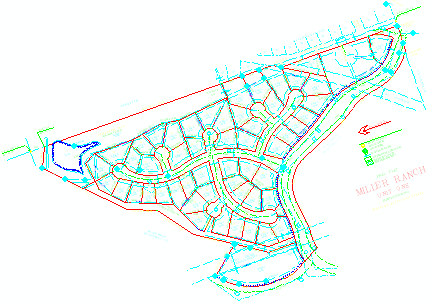
The CAD layer now reflects a new rotation angle.
Scaling a CAD layer

Scaling a CAD layer requires that you hold down the mouse button and drag the CAD layer to the desired size. When you hold down the mouse button with the Scale tool, a rectangle that represents the extents of the CAD layer will appear in the map temporarily. The size of the rectangle will increase or decrease, depending on the direction you drag it.
Dragging the mouse pointer down toward the bottom of the data frame will reduce the size of the CAD layer. Dragging the mouse pointer up toward the top of the data frame will increase the size of the CAD layer. However, the CAD features will remain in the original location until you release the mouse button. Once you release the button, the scaling will complete and the CAD features will reflect the new size of the CAD layer.
The following illustrations depict the Scale tool's workflow:
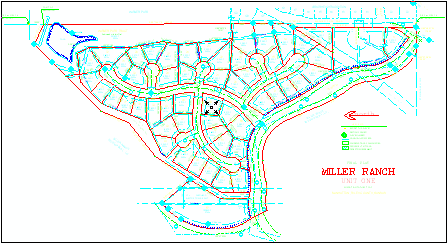
When the Scale tool is active and clicked on the map, the extents of the CAD layer will be displayed. This is to provide a reference for scaling the CAD layer.

Dragging the cursor will modify the size of the CAD layer. Releasing the mouse button will scale the CAD layer and update the map display.
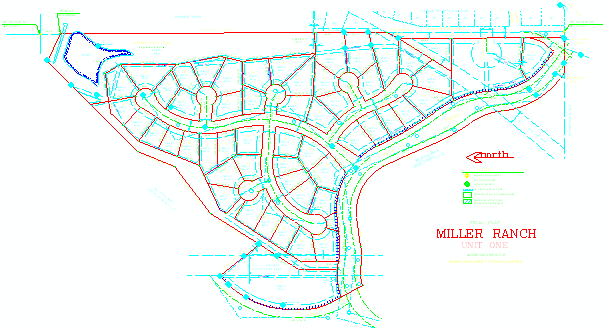
This example shows that the CAD layer was scaled to a larger size.
Creating control points

The Georeferencing toolbar supports the creation of control points that define a transformation of a CAD layer. Control points can be created interactively in the map with the Add Control Points tool and are used to create the source and destination coordinates of the transformation. When the tool is active, the first mouse click will define the source (from) coordinates. The second mouse click will define the destination (to) coordinates. The control point will be represented in the map with a green crosshair symbol that denotes the source point, a blue line that denotes the distance of the control point, and a red crosshair symbol that denotes the destination point.
Since CAD transformations are based on the similarity transformation method, only two control points are necessary to define the transformation. Therefore, you can only have two control points in the map at one time. You must delete at least one control point prior to adding another one. You can accomplish this by using the Delete Control Point tool on the Link Table dialog box or by using the Delete Control Points command on the Georeferencing menu. However, Delete Control Points will delete all the control points in the map and reset the transformation.
NOTE: The Auto Adjust setting is automatically disabled once a control point is created in the map. This is done to ensure that a two-point transformation is performed.
The following illustrations depict the Control Point transformation workflow:
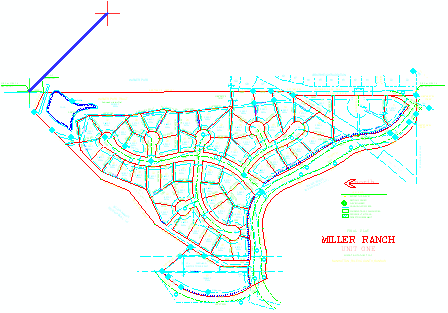
This example shows the creation of the first control point.
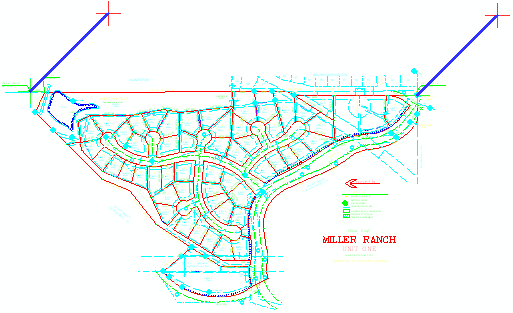
This example shows the creation of the second control point. This CAD layer can then be transformed by clicking the Update Georeferencing command.
Entering coordinates
The Add Control Points tool also allows you to type in destination coordinates via a text box when creating a control point. This allows you to enter exact destination coordinates of a control point. To access this text box, use the Add Control Point tool to create the from point. When the from point has been created, right-click and click Input X and Y to enter the coordinate values. After you type the appropriate coordinate values, click OK to dismiss the text box. The control point will appear in the map.

Using the Link Table dialog box

The Link Table dialog box provides a way to view the source and destination coordinates in a tabular format. Each row in the Link Table represents one control point. For CAD data, there will never be more than two control points in the table at one time, since CAD transformations are two-point transformations (for example, similarity).
When control points are initially created in the map, the coordinates in the Link Table will contain the from and to coordinate values as shown below:
| Link | X Source | Y Source | X Map | Y Map |
| 1 | <From X> | <From Y> | <To X> | <To Y> |
| 2 | <From X> | <From Y> | <To X> | <To Y> |
Control points are updated in the Link Table when the Update Georeferencing command is clicked. Additionally, the Auto Adjust menu command or check box (on the Link Table browser) will also update the coordinates. As previously mentioned, Auto Adjust is automatically disabled when the initial control point is created to ensure a two-point transformation.
The source and destination coordinate values can be directly edited in the Link Table. This is done by double-clicking a coordinate value so that the values become highlighted, indicating that the coordinates can be modified. Editing control point coordinates is useful in cases where you want to update the control point locations based on other information sources.
Control points can be deleted using the Link Table dialog box. This is done by selecting a row and clicking the Delete Control Points button. When a control point or row is deleted, the other control point record will assume its position. For example, if you have two control points in the Link Table and delete the first record, the second record will move up to the first row. The next control point you create will assume the second record in the Link Table.
You must delete at least one control point prior to adding another one. This can be accomplished by opening the Link Table, selecting a row, and clicking the Delete Control Points button.
NOTE: CAD transformations can never have more than two control points in the Link Table.

Update georeferencing

When you are satisfied with your CAD transformation, you can commit it via the Update Geoferencing command. When you click the Update Georeferencing command, a Save As dialog box will appear. You can accept the default name and location (which will always be the CAD dataset's name and the folder where it resides) or specify your own name and location. Once you save the world file, the CAD layer will be transformed and the coordinates that were used to define the transformation will be cleared from the Link Table.
Below is an illustration of the Link Table Save As dialog box:

How to transform CAD datasets
Using the Shift tool
- Click the Shift button on the Georeferencing toolbar.
- Click the mouse button.
- While holding down the mouse button, drag the CAD layer to the desired location.
- Once you've finished positioning the CAD layer, release the mouse button.
The CAD layer will appear at the location you specified.
Using the Rotate tool
- Click the Rotate button on the Georeferencing toolbar.
- Click the mouse button.
- While holding down the mouse button, rotate the CAD layer to the desired orientation.
- Once you've finished rotating the CAD layer, release the mouse button.
The CAD layer will appear at the orientation you specified.
Using the Scale tool
- Click the Scale button on the Georeferencing toolbar.
- Click the mouse button.
- While holding down the mouse button, scale the CAD layer to the desired size by dragging the pointer up or down.
- Once you've finished scaling the CAD layer, release the mouse button.
The CAD layer will be the size you specified.
Creating control points
- Click the Add Control Points button on the Georeferencing toolbar.
- Click the mouse pointer on the known location in the CAD layer to create the from point.
- Click the mouse pointer on the known location on the map or reference layer to create the from point.
The control point will appear on the map.
| Tips |
|
Entering specific x,y map coordinates
- Click the Add Control Points button on the Georeferencing toolbar.
- Click the mouse pointer on the known location in the CAD layer to create the from point.
- Right-click and click Input X and Y.
The Enter Coordinates dialog box appears. - Type an x-coordinate value.
- Type a y-coordinate value.
- Click OK.
The control point will appear on the map with its destination coordinates defined by the values that were typed on the Enter Coordinates dialog box.
Using the Link Table dialog box
- Click the Link Table button on the Georeferencing toolbar.
The Link Table dialog box appears. - Double-click a coordinate value in the list to edit it.
- Select a link record and click the Delete button to remove the control point.
- Click the Load button to load an existing world file.
- Click the Save button to save the control point coordinates to the world file.
- Click OK.