Extensions > Geostatistical Analyst > Exploratory Spatial Data Analysis (ESDA)
Semivariogram/Covariance cloud |
|
|
Release 9.3
Last modified December 11, 2008 |


Print all topics in : "Exploratory Spatial Data Analysis (ESDA)" |
The Semivariogram/Covariance cloud shows the empirical semivariogram and covariance for all pairs of locations within a dataset and plots them as a function of the distance between the two locations.
View the isotropic and anisotropic models illustration.
The semivariogram/covariance cloud can be used to examine the local characteristics of spatial autocorrelation within a dataset and look for local outliers. The semivariogram cloud looks like this:

In the illustration above, each red dot is the empirical semivariogram (the difference squared plotted relative to the separation distance) between a pair of locations in the dataset. You can brush dots and see the linked pairs in ArcMap.
A Semivariogram Surface with Search Direction capabilities is given below. The values in the semivariogram cloud are put into bins based on the direction and distance between a pair of locations. These bin values are then averaged and smoothed to produce a surface of the semivariogram. Below, a color ramp is given along with the values on the borders between color transitions. You can input a lag size to control the size of the bin, and the number of bins is given by number of lags. The extent of the semivariogram surface is controlled by lag size and number of lags.
Learn more about binning the empirical semivariogram.
Learn more about choosing the lag size.
Learn more about empirical semivariograms for different directions.
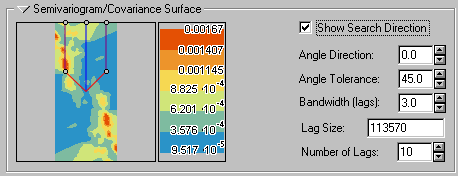
You can view subsets of values in the semivariogram cloud by checking the Show Search Direction box and clicking the direction controller to resize it or change its orientation.

You select the dataset and attribute using the following:

Here, OZONE is the attribute field containing the ozone concentration.
You can also click the arrow  button to temporarily hide this part of the tool.