Show Navigation
|
Hide Navigation
You are here:
Mapping and visualization > Using cartographic representations > Editing feature representations
Mapping and visualization > Using cartographic representations > Editing feature representations
Reshaping feature representations(ArcInfo and ArcEditor only) |
|
|
Release 9.3
Last modified April 24, 2009 |


Print all topics in : "Editing feature representations" |
Related Topics
About reshaping feature representations
Note:
This topic was updated for 9.3.1.
You can reshape line and polygon feature representations interactively by stretching whole segments of geometry, or more precisely by manipulating individual vertices. Representation symbology will be dynamically reapplied to feature representations after they are reshaped.
Reshaping with the bounding box
When you select whole representations with the Select
 or the Lasso Select
  tools, a rectangular bounding box is drawn around the limits of the selection. You can drag the handles on the bounding box with the Select tool to stretch the rectangle to proportionally reshape all the selected feature representations within the box.
 Learn about resizing feature representations
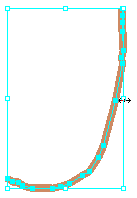
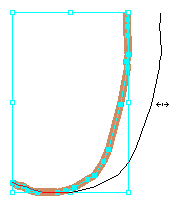
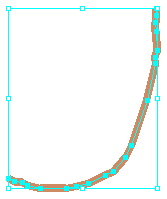
Reshaping by moving vertices
You can reshape geometry with the Direct Select tool
 by moving one or more vertices from one or more feature representations simultaneously. Segments joining selected and unselected vertices will be stretched to accommodate the move, and representation symbology will be dynamically reapplied.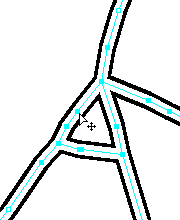
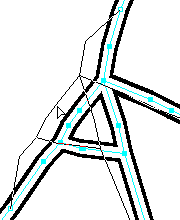
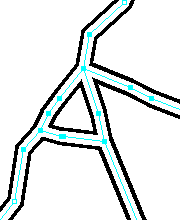
Reshaping with the Move Parallel tool
Using the Move Parallel tool
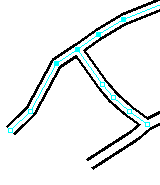
 , you can reshape geometry in a controlled way by moving each selected segment exactly parallel to its previous position. The Move Parallel tool can be used on more than one selected feature representation at a time only if the selected vertices are from connected segments that form a continuous polyline.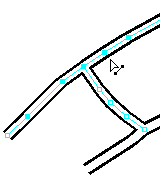
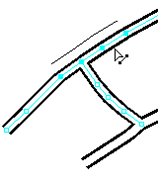
Reshaping with the Warp tool
The Warp tool
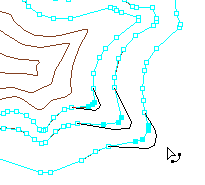
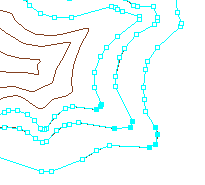
 lets you reshape geometry smoothly by displacing selected segments proportionally from the location you click and drag with the tool.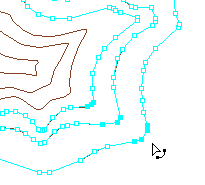
Reshaping with the Erase tool
With the Erase tool
 , you can reshape a feature representation by removing portions of its geometry. The representation rule is reapplied to the remainder of the feature representation.
 Learn how to mask feature representations
Learn how to make feature representations invisible
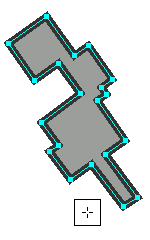
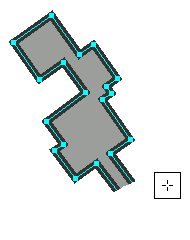
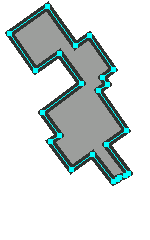
How to reshape feature representations
Using the bounding box
- In an edit session, select one or more feature representations with the Select tool or the Lasso Select tool
 .
.
A rectangular bounding box is drawn around the selection. - Move the pointer over one of the handles on the perimeter of the bounding box until it changes to a two-way arrowhead:
 .
.
- Click and drag to reshape the bounding box.
The selected feature representations will be proportionally reshaped as well.
| Tips |
|
 , allowing you to rotate the entire selection.
 Using the Direct Select tool
- In an edit session, select one or more vertices from one or more feature representations with the Direct Select tool
 or the Lasso Direct Select tool
  .
.
The geometry is highlighted, and selected vertices are filled. - Move the pointer over a selected vertex.
A four-way arrow appears next to the pointer: - Click and drag to move all selected vertices.
Unselected vertices will remain in place, and the segments between selected and unselected vertices will be stretched to accommodate the move.
 .
.| Tips |
|
Using the Move Parallel tool
- In an edit session, select at least two adjacent vertices from connected segments that form a continuous polyline with the Direct Select tool or the Lasso Direct Select tool
 .
.
The geometry is highlighted and selected vertices are filled. - Click the Move Parallel tool .
- Click and drag to move the selected segments exactly parallel to their previous positions.
Unselected segments will remain in place, and the segments between selected and unselected vertices will be stretched to accommodate the move.
| Tips |
|
Using the Warp tool
- In an edit session, select any number of vertices from one or more line or polygon feature representations with the Direct Select tool or the Lasso Direct Selet tool , or select three or more point feature representations.
The geometry is highlighted and selected vertices or point feature representations are filled. - Click the Warp tool .
- Click and drag to move the selected vertices or points.
The greatest amount of displacement will occur nearest—and in the direction of —the point from which you begin to drag. Displacement will be gradually diminished proportionally away from that point so that a smooth transition is made. Unselected segments will remain in place.
| Tips |
|
Using the Erase Tool
- In an edit session, select one or more feature representations.
The selected geometry is highlighted. - Click the Erase tool on the Representation toolbar.
- Click and drag to erase portions of selected representations.
Polygon geometry will be automatically reclosed, and representation symbology will be dynamically reapplied to the remaining feature representation portions.
| Tips |
|