Mapping and visualization > Working with web maps in ArcGIS > Using OGC Services
WMS service layers and coordinate systems |
|
|
Release 9.3
Last modified August 6, 2010 |


Print all topics in : "Using OGC Services" |
About WMS service layers and coordinate systems
Note:
This topic was updated for 9.3.1.
When using Web Map Service (WMS) services, you may want to keep to server-supported coordinate systems for best results. WMS servers may only support a limited set of coordinate systems, depending on how the service has been configured by its author. In addition, each WMS sublayer within the WMS service can potentially support a different set of coordinate systems. Like with other layers, if a WMS service layer is the first layer added to a new, empty data frame, the data frame will take on the WMS service's default coordinate system.
Since each sublayer within a WMS service may support different coordinate systems, the Source tab on the Layer Properties dialog box for a WMS sublayer is where you will find a list of the supported coordinate systems. You won't see this list on the Source tab for the WMS service or WMS group layers.
If you scroll the Data Source box on the Source tab, you'll see a list of the coordinate systems supported by this sublayer. Both the European Petroleum Survey Group (EPSG) number, which the WMS server uses to distinguish coordinate systems, and the name of the coordinate system are shown. This information is also listed on the WMS server's Properties dialog box in ArcCatalog.
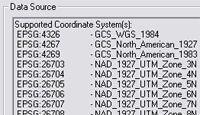
When the coordinate system is not supported by the WMS server
If the data frame is in a coordinate system that is not supported by the WMS server, ArcMap gets an image from the server in a supported coordinate system—in most cases this will be in GCS 1984—and projects this image internally so it will display in your map. In other words, ArcMap will project this image on the fly.
For example, World Geodetic System (WGS) 1984 is the default coordinate system for a WMS service hosting National Aeronautics and Space Administration (NASA) world cloud-free imagery.
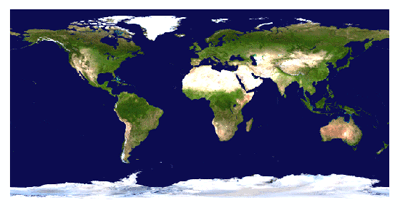
If that service layer is added to a data frame with a coordinate system not supported by the WMS server, such as World Fuller, ArcMap uses the image previously received from the server and projects it on the fly.
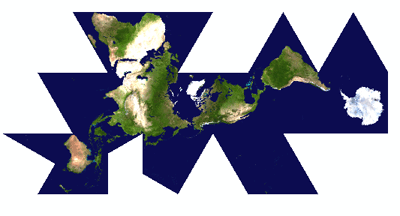
Depending on the coordinate system being used by the data frame, there may be some level of distortion in the display of the WMS layer—most noticeably if the layer has text. The benefit of using only coordinate systems supported by the WMS server is that the image returned by the WMS server is not postprocessed to fit into an unsupported coordinate system.
Changing to a server-supported coordinate system
You can right-click a WMS service, group layer, or sublayer in the table of contents and click Change Coordinate System to view the server-supported coordinate systems. This dialog box allows you to change the data frame's coordinate system to one that is supported by the WMS service. If you launch this dialog box by right-clicking any group or layer inside the WMS service, it will only list the coordinate systems supported by the group or layer you right-clicked.
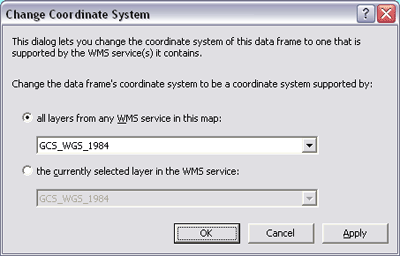
If your map contains more than one WMS service, you can click the first option on this dialog box to choose a coordinate system that is supported by all the layers in all the WMS services in your map. Depending on which services you are accessing, you may find the situation where there is no coordinate system that is common to all the services.
The Change Coordinate System command can be used at any time, even if all the layers in the WMS service or services you are using support the data frame's current coordinate system. For example, you can use the Change Coordinate System command to choose a different coordinate system for your data frame. This will ensure that the coordinate system you choose will be one that is supported by all the WMS services in your map.
You can change the coordinate system of your map from the Data Frame Properties dialog box, but this doesn't limit your choices to those supported by WMS services in your map and may result in some or all the layers in these services being projected on the fly.
For more information regarding OGC WMS specifications, see the OGC Web site at www.opengeospatial.org/standards.
How to choose a coordinate system supported by a WMS server
- Right-click the WMS service layer in the table of contents and click Change Coordinate System.
- Click a coordinate system from the drop-down list. If your map contains more than one WMS service, you can choose a coordinate system that is supported by all the layers in all the WMS services in your map.
- Click OK. The coordinate system for the data frame has now been changed.
| Tip |
|