Extensions > Schematics > Schematics Designer > Diagram Type and Element Type Attributes
Defining a Constant attribute |
|
|
Release 9.3
Last modified June 5, 2008 |


Print all topics in : "Diagram Type and Element Type Attributes" |
About Attribute Constant
An attribute Constant is an attribute whose values are a constant value.
All the attributes defined for an element type (or a diagram type) are displayed under the Attributes entry related to this element type (or diagram type). Each defined attribute is referenced by its name.
A Constant attribute entry is easily identifiable visually: the following icon  is displayed on the left of the entry.
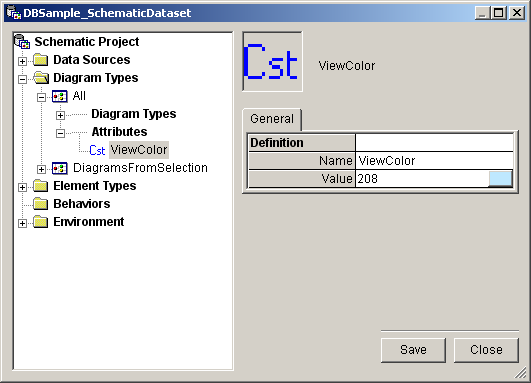
Selecting a given Constant attribute entry in the Designer tree displays its corresponding parameters on the right part of the window:

How to define Attribute Constant's parameters
When a Constant attribute entry is selected in the Designer tree, the right part of the Designer Editor window lists all the available parameters. As a Constant attribute is an attribute whose value is a constant, two parameters must be defined:
- The attribute name (in the Name field)
- The constant value (in the Value field)
By default, the attribute name is set when the attribute is created (see Creating attributes for a diagram type or an element type help page for more details), but it may be modified at any time by editing the corresponding Name field.
Learn about predefined attribute names for diagram types
Learn about predefined attribute names for element types
The steps required to specify the Value parameter are explained below:
- Type a value in the Value field.
Even if the attribute constant value may be any constant parameter (number, string, and so on), when you define an attribute whose name is a predefined attribute name, the type of the value is often implicit (For instance, with the ViewColor attribute, the value must be an integer; with the SpaceSymbolScaling, the defined value is a double).
Clicking the Value field displays the set color in a little rectangle (black color, by default). A click on this rectangle launches the Table Color Editor utility that allows you to choose or define the color you want: