Extensions > Spatial Analyst > Analysis concepts > Generalization
Understanding generalization analysis |
|
|
Release 9.3
Last modified January 13, 2012 |


Print all topics in : "Generalization" |
Note:
This topic was updated for 9.3.1.
The generalization analysis functions are used to either clean up small erroneous data in the raster or to generalize the data to get rid of unnecessary detail for a more general analysis. The erroneous data may be unclassified data originating from a satellite image, unnecessary lines or text originating from a scanned paper map, or imported from some other raster format.
The example below shows a typical use of the generalization tools to clean up a classified image that was derived from remote sensing software. This example demonstrates one sequence of how the functions can be applied. Each function can be used alone or in combination with other data cleanup functions for various applications.
The image below is the raw satellite scene that will be classified.
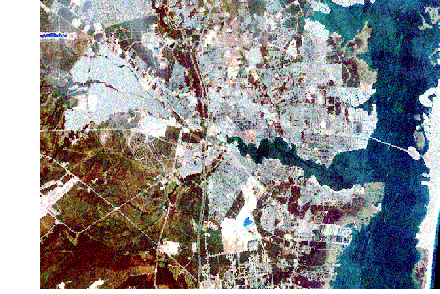
In a supervised classification, training samples are identified on an image, such as the satellite image. The training samples are taken in different land uses to identify water, residential, hardwoods, conifers, and so on. From these training samples, all other cell locations in the image are allocated to one of these known land types or uses. Sometimes land use signatures (statistics derived from the training samples) are similar, making it difficult to distinguish between two classes. For example, with the existing training samples, the software may not be able to distinguish between an alder swamp and a wetland with hardwoods. This may be due to an inadequate number of training samples or the fact that certain land uses were never sampled at all. These limitations, as well as others, can lead to the misclassification of certain locations. As a result, a single or a small group of cells may be misclassified as an entity different from the sea of cells surrounding it, when in reality, the entity belongs to the group of cells that surrounds it. Another typical area of misclassification is the boundaries between different land uses. Often what results is a jagged, unrealistic representation of the boundary that can be smoothed with the generalization tools. Below is the classification of the satellite image. Notice there are many small, isolated single or groups of cells throughout the image.
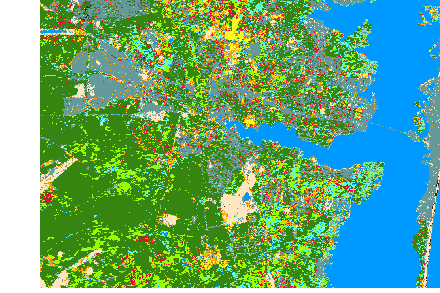
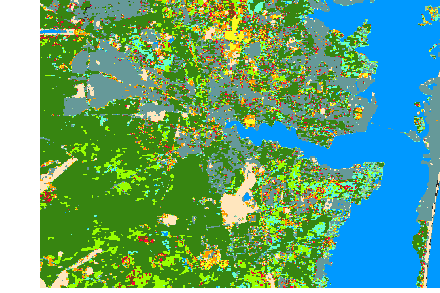
To remove the single, misclassified cells in the classified image, the Majority Filter function is applied. The results are displayed in the image below. Notice that many of the smaller groups of cells have disappeared.
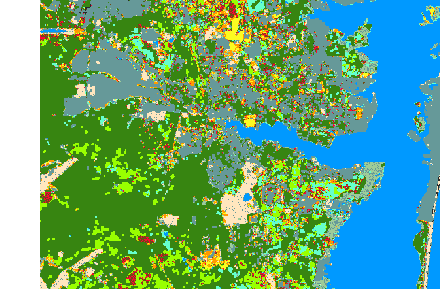
To smooth the boundaries between zones, the Boundary Clean function can be implemented. By expanding and shrinking the boundaries, the larger zones will invade smaller zones, as is the case in the image below. Again, notice that even more of the smaller and thinner groups of cells have disappeared.
Note that Majority Filter and Boundary Clean will only process out the single or very small clusters of a few misclassified cells by assigning them to the value that appears most frequently in the immediate neighborhood. Suppose, however, that there is a certain size threshold below which individual groupings of like cells are considered too small to be meaningful in the ensuing analysis. These clusters should instead be dissolved into the surrounding groups. For example, any contiguous clusters of the same land use category that are smaller than 7,200 square meters in size are deemed not significant to the analysis. However, these isolated regions cannot be individually processed since they have the same land use value as the entire zone.
To resolve this issue, the Region Group function is applied. This function will assign a unique identifier to each region in the input raster (the classified image). A region is any contiguous group of cells of the same value. Consider a single zone composed of two regions that are not connected. RegionGroup will divide this zone into two new zones, each having a unique identification (zone) value. The original zone value is maintained as a LINK field in the output attribute table. The resulting raster from RegionGroup is shown below, and displays the many different output zones.
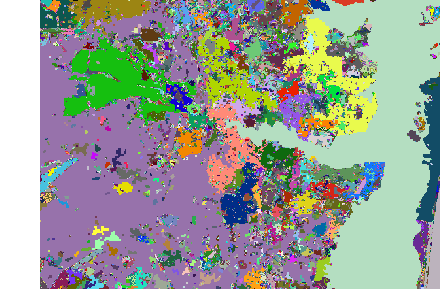
Next, using a selection function, such as the Extract by Attribute tool in the Extraction toolbox or the Raster Calculator, an output raster is created where regions smaller than the area threshold have been removed.
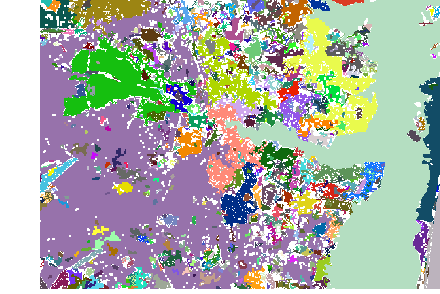
Using the Nibble function on the resultant raster from the extraction function (identifying the regions to eliminate) and with the values from the classified image raster, the function visits each cell location to eliminate and replaces it with the closest cell with a value on the classified raster.
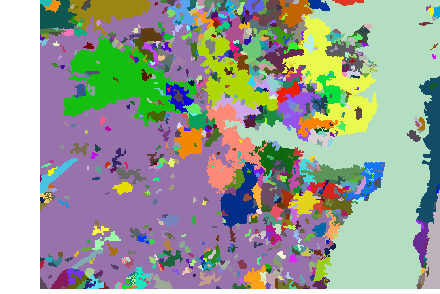
Using the link item from the results of the Region Group function, the original zone values from the classified image are reassigned to the individual regions created from the Region Group function. The result is a more generalized land use map which can be used in subsequent analysis, and is displayed below.
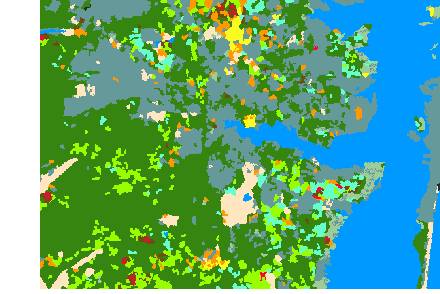
Other generalization functions include the following: the Expand function expands specified zones, as opposed to the Shrink function, which shrinks specified zones; and the Thin function thins linear raster features in a raster, which is particularly useful for cleaning up scanned paper maps.