Editing and data compilation > Creating new features
Merging and separating features |
|
|
Release 9.3
Last modified May 21, 2009 |


Print all topics in : "Creating new features" |
About merging and separating features
The Merge command combines selected features of the same layer into one feature. The features must be from either a line or a polygon layer.
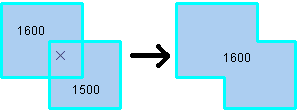
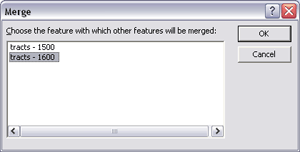
When merging, you choose which feature's attributes will be preserved during the operation. When you click a value in the Merge dialog box, the feature flashes on the map. The merge policy, if present, does not determine the value of the attributes in the merged feature.
When features are not adjacent, a multipart feature will be created. For example, you could merge the individual islands that make up Hawaii to create a multipart polygon feature.
On the other hand, you can use the Explode tool  on the Advanced Editing toolbar to separate a selected multipart feature into its individual, component features. This would be useful if you needed to alter the attributes of one of the elements in a multipart feature.
There are also geoprocessing tools available to merge and separate features. The Merge and Multipart to Singlepart geoprocessing tools work on all features in a layer rather than just the selected features.
If you are working with representations and shape overrides, learn more about how they behave in a merge.
Considerations for features with COGO fields
If you select line features with COGO fields and those features can be formed into a single COGO line, two extra options are available on the Merge dialog box. Checking the Merge into a single COGO line box will ensure the newly merged feature has a single straight line segment or a single circular arc segment. Checking the Update COGO attributes box will ensure the COGO description for the new feature is updated.
How to merge and separate features
Merging features from the same layer
- Click the Edit tool
 .
.
- Click the features you want to merge.
- Click the Target layer drop-down arrow and click the layer to which you want the new feature to belong.
- Click the Editor menu and click Merge.
The selected features are merged into one.
Separating a multipart feature
- Click the Edit tool .
- Select the multipart feature you want to separate into individual features.
- Click the Explode tool on the Advanced Editing toolbar.
The parts of the multipart feature become independent features.