Show Navigation
|
Hide Navigation
You are here:
Interoperability and standards support > GML support in ArcGIS
Interoperability and standards support > GML support in ArcGIS
Using the GML simple features profile |
|
|
Release 9.3
Last modified October 13, 2010 |


Print all topics in : "GML support in ArcGIS" |
NOTE: All ArcView, ArcEditor, and ArcInfo users have the rights to freely use GML services based on the GML Simple features Profile (GML-SF). Support for GML is enabled for all Desktop users by installing optional software for ArcGIS Desktop called the "Data Interoperability extension." Installing this software enables some capabilities to work for all users to support both GML and WFS.
NOTE: You do not need to purchase the extra capabilities contained in the Data Interoperability Extension to access this functionality. However, the Data Interoperability Extension software must be installed for you to access and use WFS and GML data sources.
You can add the Data Interoperability extension to your existing ArcGIS Desktop installation by using either the "Complete" or "Custom" options of the ArcGIS Installation process.
Here's an example picture of the ArcGIS Desktop Setup dialog:
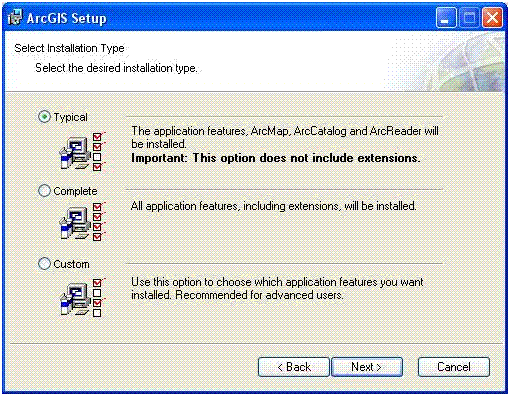
By checking on Complete, you will install all optional extensions to ArcGIS Desktop.
By checking on Custom, you can choose the subset of extensions you wish to have installed on your computer. To support GML and WFS, you will want to ensure that you have enabled the Data Interoperability extension to be installed.
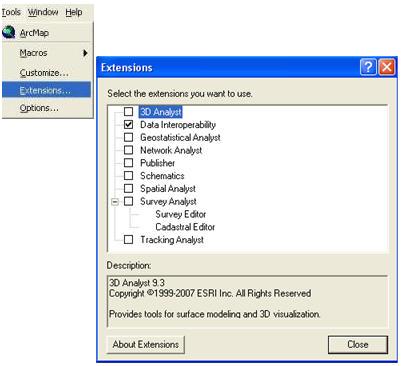
Once you have installed this extension, you can access and use GML and WFS in ArcCatalog, ArcMap, and other Desktop applications by turning this extension on.
Steps
- From the Main menu in ArcCatalog, ArcMap, and so on, choose "Extensions . . ." in the Tools pulldown.
- Be sure to turn on the Data Interoperability extension as shown below.
Accessing datasets in the GML Simple Features Profile using ArcGIS Desktop
ArcGIS Desktop includes the ability to directly use the GML simple features profile for mapping, as geoprocessing inputs, and to convert between this and other GIS data formats.
Steps
Here are the steps for adding the GML simple feature format to ArcGIS:
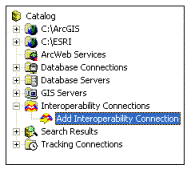
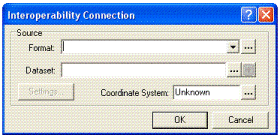
- In ArcCatalog, add a new interoperability connection by double-clicking on "Add interoperability connection":
- Click the
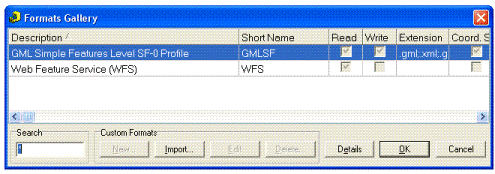
 button for Format to open the Formats Gallery.
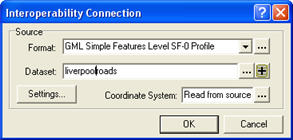
- Select the GML simple features format and click OK.
- Next, choose a GML dataset and begin using GML simple features in ArcGIS.