Show Navigation
|
Hide Navigation
You are here:
Geoprocessing > Automating your work with scripts > Creating script tools
Geoprocessing > Automating your work with scripts > Creating script tools
An overview of creating script tools |
|
|
Release 9.3
Last modified June 3, 2010 |


Print all topics in : "Creating script tools" |
Related Topics
Note:
This topic was updated for 9.3.1.
Scripts that you create can be executed with one of two basic methods, outside ArcGIS and within ArcGIS.
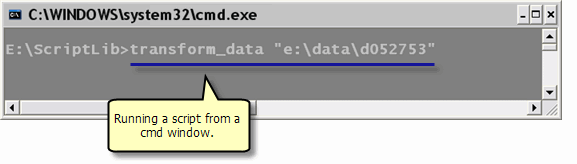
- Outside ArcGIS means that the script is executed from the operating system command prompt, as shown below, or within a development application like PythonWin. Scripts executed in this manner are referred to as "stand-alone scripts."
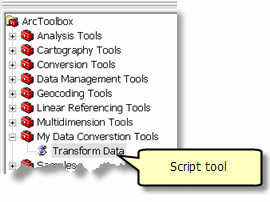
- Within ArcGIS means you create a script tool inside a toolbox. A script tool is like any other tool—it can be opened and executed from the tool dialog, used in the command line and models, and called from other scripts and script tools.
Creating a script tool for your script is easy, and there are many advantages for doing so.
- A script tool that you create is an integral part of geoprocessing, just like a system tool—you can open it from ArcToolbox, use it in ModelBuilder and the command line, and call it from another script.
- You can write messages to the progress dialog.
- Using the built-in documentation tools, you can provide documentation that is accessed just like system tools.
- When the script is run as a script tool from ArcToolbox, the geoprocessing object you create is fully aware of the application it was called from, such as ArcMap or ArcCatalog. It is, in fact, the same geoprocessing object the application is using, rather than a new object (as it would be when run outside ArcGIS). All environment settings made in the application, such as overwriteoutputs and scratchworkspace, are available from the geoprocessing object you create.
To create a script tool, you need three things:
- A script
- A custom toolbox
- A precise definition of the parameters of your script
To create a script tool, right-click your custom toolbox and click Add > Script, as shown below. The Add Script tool wizard takes you step by step through the process of creating a script tool. After completing the steps, your toolbox will contain a new script tool. You can always modify properties of this script tool by right-clicking the script tool and choosing Properties.

The table below guides you to topics that show you how to create script tools.
| Geoprocessing framework | This is a broad overview topic that discusses how the geoprocessing framework is designed so that the script (and model) tools you create become integral parts of a complete system to automate your work. |
| Getting started with scripting | To create a script tool, you first need to create a script. This topic introduces you to the process of script writing. |
| Basic toolbox management | This topic shows you how to create a custom toolbox to contain your script tool. |
| Understanding script tool parameters | The parameters of your script tool need to be precisely defined. This topic is all about how you define parameters. |
| Adding a script tool | This topic explains the Add Script Tool wizard and what it requires. |
| Editing script tool code | Describes how to open your script for editing. |
| Setting script tool parameters | After using the Add Script tool wizard to create a script tool, you can modify its properties. |
| Writing messages in script tools | Because your script will be executed from an ArcGIS application, such as ArcMap and ArcCatalog, you can write messages to the progress dialog. |
| Running a script in process | You can make your script tools run faster by running them in process. This topic describes in process execution. |
|
Customizing script tool behavior
Programming a ToolValidator class Debugging a ToolValidator class |
You can customize how your script tool dialog appearance changes based on user input. For example, you can enable (gray-out) parameters, provide default values, and restrict parameter values to be only certain types (for example, only allow point feature classes to be input). You can also define properties of your tool output for use in ModelBuilder. These three topics show you how this is done using a special Python class called ToolValidator. |
| Setting output symbology in scripts | You can associate a layer file (.lyr) with an output parameter to define the symbology used to display the output. This topic shows you how this is done from a script. |
| An overview of documenting tools and toolboxes | A script tool without documentation is of little use to other users in your organization. This topic shows you how to document your tools and toolboxes. |
| An overview of sharing tools and toolboxes | This topic shows you how to distribute your tools to other users within or outside your organization. |