Geoprocessing > Automating your work with scripts > Creating script tools
Customizing script tool behavior |
|
|
Release 9.3
Last modified June 3, 2010 |


Print all topics in : "Creating script tools" |
Note:
This topic was updated for 9.3.1.
You can provide custom behavior for your script tool dialog such as enabling and disabling of parameters, providing default values, and updating string keywords. To add custom behavior for your script tool, right-click the script tool, click Properties, and click the Validation tab. On the Validation panel, you can provide Python code that implements a Python class named ToolValidator. By adding Python code, you can
-
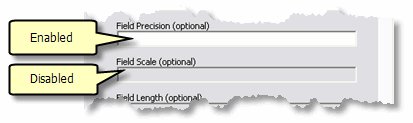
Enabled or disable a parameter based on values contained in other parameters.
-
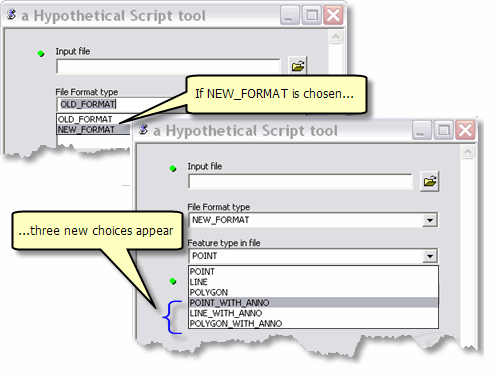
Update a parameter filter. Using a field filter, you can create a list of valid field types such as LONG and DOUBLE. With a string filter, you can set a list of valid keywords, as shown below. There are six types of filters: Value List, Range, Feature Class, File, Field, and Workspace.
-
Provide
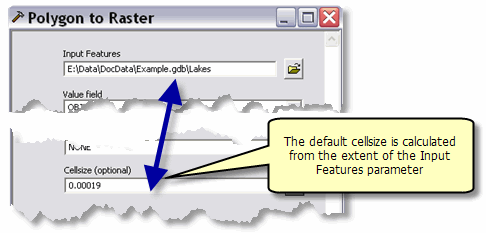
default values for parameters, such as cell size for rasters.
-
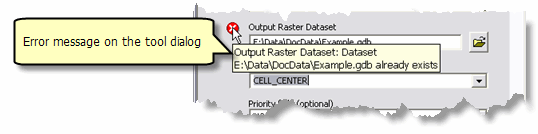
Customize warning and error messages that appear in the dialog.
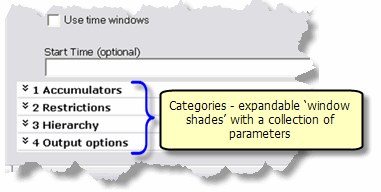
- Put parameters in different categories.
-
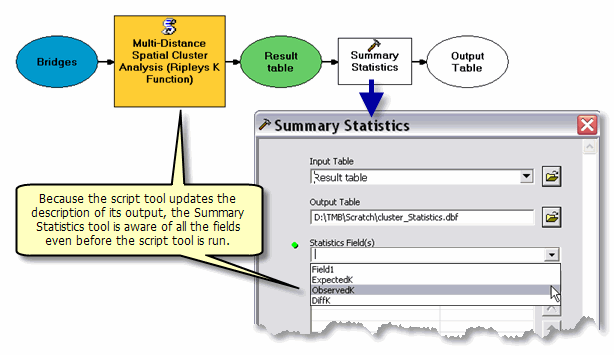
Update the description of output datasets for use in ModelBuilder.
How ToolValidator works
The ToolValidator class is a block of Python code that geoprocessing uses to control how the tool dialog and command line change based on user input. The ToolValidator class is also used to describe the output data of the tool, which is important for building models. System tools (those provided by ESRI) have always had the capability to react to user input and subsequently modify the tool dialog as described above. Until ArcGIS 9.3, script tools did not have this capability—the tool dialog was static and the output of the script tool did not contain an updated description, making it difficult to work with script tools in ModelBuilder. With version 9.3, the ToolValidator class was added to give you all the capabilities of a system tool.
Even though the ToolValidator class is implemented using Python code, you can still use any scripting language to do the actual work of the tool.
ToolValidator and validation
Validation means checking that all tool parameters are correct and providing useful messages if they are not. There are two parts to validation:
- The part that you can do by adding code to the ToolValidator class.
- The part that ArcGIS does automatically for you. This part of validation is referred to as internal validation (or basic validation), since it is the basic validation done internally by geoprocessing in ArcGIS.
Let's first look at what internal validation does:
- If a parameter is required, check if it's empty (nothing entered yet) and, if so, post the "Value is required" message to the tool dialog (using a green dot instead of a red X).
- Check that the value the user entered is of the right type (for example; entering a raster instead of a feature class or alphabetic characters instead of a number.)
- Check filter membership. That is, if you have a Value List filter containing keywords such as RED, ORANGE, and YELLOW, and you enter BLUE, you'll receive an error message because BLUE isn't found in the Value List filter.
- Check existence of input datasets.
- Generate a default catalog path for output datasets.
- Update the description of the output data based on a set of rules contained in a special object called a Schema.
- Check existence of output datasets against the Overwriteoutputs environment setting. If the dataset exists and Overwriteoutputs is false, an error is produced, otherwise, a warning is produced.
- If the parameter is a Field data type, check that the field exists on the associated table.
- Check that the output dataset isn't the same as the input dataset (unless the output is derived, like Add Field).
- For parameters containing linear and areal unit data types, set their default values by examining the corresponding values in ArcMap (if running from ArcMap).
- If the output is a coverage, grid, or INFO table, check the 13 character file name limit for these datasets.
Internal validation doesn't do the following (but you can with a ToolValidator class):
- Update filters based on interaction with other parameters. For example, if your user enters a point feature class in the first parameter, you want your tool dialog to display RED, ORANGE, and YELLOW in the third parameter. If they enter a polygon feature class, you want to display BLUE, INDIGO, and VIOLET in the third parameter.
- Enable/Disable parameters.
- Calculate default values.
- Perform any tool-specific parameter interaction.
The code you add to the ToolValidator class works in concert with internal validation as follows:
- You can provide a set of rules that internal validation uses for updating the description of output datasets. These rules are contained in a Schema object.
- You can update filters before internal validation occurs. Drawing on the example above, if a point feature class is entered you would update the filter to contain RED, ORANGE, and YELLOW. Internal validation will check the value the user entered against the values found in the filter.
And, as mentioned, you can have your ToolValidator calculate default values, enable and disable parameters, and customize messages. These types of actions have no consequence for internal validation, they only affect the appearance of the tool dialog.
Using the ToolValidator class to customize the tool dialog
ToolValidator is a Python class that contains three methods: initializeParameters(self), updateParameters(self), and updateMessages(self). It also contains the standard Python class initialization method, __init__(self). To view and edit the ToolValidator class, right-click your script tool, click Properties, then click the Validation tab. The illustration below shows the Validation tab with the default ToolValidator class code. Click the Edit button to edit the code and, after editing, click OK or Apply to apply your edits.
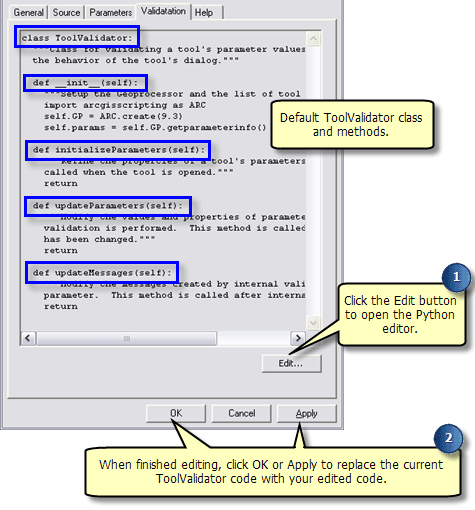
| Method | Description |
| __init__ | Initializes the ToolValidator class. Import any libraries (such as arcgisscripting) you need and initialize the object (self). |
| initializeParameters | Called once when the tool dialog first opens, or when the tool is first used in command line. |
| updateParameters | Called each time the user changes a parameter on the tool dialog or the command line. After returning from updateParameters, geoprocessing calls its internal validation routine. |
| updateMessages | Called after returning from the internal validation routine. You can examine the messages created from internal validation and change them if desired. |
NOTE: Do not call other geoprocessing tools or open datasets in ToolValidator because the ToolValidator class is executed each time a user changes something on the tool dialog. Use geoprocessing tools in your script—not in ToolValidator.
NOTE: You must implement the three methods, initializeParameters(self), updateParameters(self), and updateMessages(self). They don't have to do anything except return, but they must be provided for ToolValidator to be a valid Python class.
Following are some examples of ToolValidator code. For a complete description of all the methods and more examples, see Programming a ToolValidator class.
To enable or disable a parameter
This example is from the Hot Spot Analysis tool.
def updateParameters(self):

  # If the option to use a weights file is selected (the user chose
  #  "Get Spatial Weights From File", enable the parameter for specifying
  #  the file, otherwise disable it
  #
  if self.params[3].Value == "Get Spatial Weights From File":
    self.params[8].Enabled = 1
  else:
    self.params[8].Enabled = 0
Coding note: When setting Boolean variables, such as Enabled, you can use these syntaxes:
self.params[8].Enabled = 1
self.params[8].Enabled = bool(1)
self.params[8].Enabled = True  # Note upper case: "True", not "true"
Any non-zero number or value is considered true.
To set a default value
This example is also from the Hot Spot Analysis tool.
def updateParameters(self):
  # Set the default distance threshold to 1/100 of the larger of the width
  #  or height of the extent of the input features.  Do not set if there is no
  #  input dataset yet, or the user has set a specific distance (Altered is true).
  #
  import string

  if self.params[0].Value:
    if not self.params[6].Altered:
      extent = string.split(self.GP.Describe                           (self.params[0].Value).extent, " ")
      width = float(extent[2]) - float(extent[0])
      height = float(extent[3]) - float(extent[1])
      if width > height:
        self.params[6].Value = width / 100
      else:
        self.params[6].Value = height / 100

        return
To update a filter
Following is an example of dynamically updating a Value List Filter containing a choice list of keywords. If the user enters "OLD_FORMAT" in the second parameter, the third parameter contains "POINT, LINE, and POLYGON". If "NEW_FORMAT" is entered, the third parameter contains three additional choices.
class ToolValidator:
  def __init__(self):
    import arcgisscripting as ARC
    self.GP = ARC.create(9.3)
    self.params = self.GP.getparameterinfo()

  def initializeParameters(self):
    return

  def updateParameters(self):
    # Provide default values for "file format type" and
    #  "feature type in file"
    #
    if not self.params[1].Altered:
      self.params[1].Value = "OLD_FORMAT"
    if not self.params[2].Altered:
      self.params[2].Value = "POINT"

    # Update the value list filter of the "feature type in file" parameter
    #   depending on the type of file (old vs. new format) input
    #
    if self.params[1].Value == "OLD_FORMAT":
      self.params[2].Filter.List = ["POINT", "LINE", "POLYGON"]
    elif self.params[1].Value == "NEW_FORMAT":
      self.params[2].Filter.List = ["POINT", "LINE", "POLYGON",                                     "POINT_WITH_ANNO",                                     "LINE_WITH_ANNO",                                     "POLYGON_WITH_ANNO"]

    return

  def updateMessages(self):
    return
Here is another example where the Value List Filter in the second parameter changes based on the shape type found in the first parameter, a feature class.
  def updateParameters(self):
    # Update the value list filter in the second parameter based on the
    #   shape type in the first parameter
    #
    stringFilter = self.params[1].Filter
    fc = self.params[0].Value
    if fc:
        shapetype = self.GP.Describe(fc).ShapeType.lower()
        if shapetype == "point" or shapetype == "multipoint":
            stringFilter.List = ["RED", "GREEN", "BLUE"]
        elif shapetype == "polygon":
            stringFilter.List = ["WHITE", "GRAY", "BLACK"]
        else:
            stringFilter.List = ["ORANGE", "INDIGO", "VIOLET"]
    else:
        stringFilter.List = ["RED", "GREEN", "BLUE"]

    # If the user hasn't changed the keyword value, set it to the default value
    #  (first value in the value list filter).
    #
    if not self.params[1].Altered:
        self.params[1].Value = stringFilter.List[0]

    return
To customize a message
def updateMessages(self):
  self.params[6].ClearMessage()

  # Check to see if the threshold distance contains a value of zero and the user has
  #  specified a fixed distance band.
  #
  if self.params[6].Value <= 0:
    if self.params[3].Value == "Fixed Distance Band":
      self.params[6].SetErrorMessage("Zero or a negative distance is invalid                                       when using a fixed distance band. Please                                       use a positive value greater than zero." )
      elif self.params[6].Value < 0:
        self.params[6].SetErrorMessage("A positive distance value is required                                         when using a fixed distance band.                                         Please specify a distance.")

  return
Updating the description of output data using the Schema object
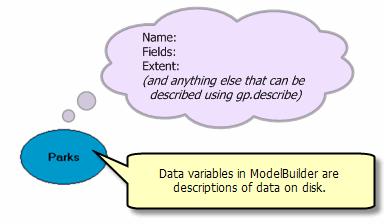
In addition to customizing the behavior of the tool dialog and Command Line, you can use ToolValidator to update descriptions of output data variables for ModelBuilder. You can think of data variables in ModelBuilder as nothing more than brief descriptions of datasets, as illustrated below. Data variables contain every property you access using the geoprocessing object's Describe method.
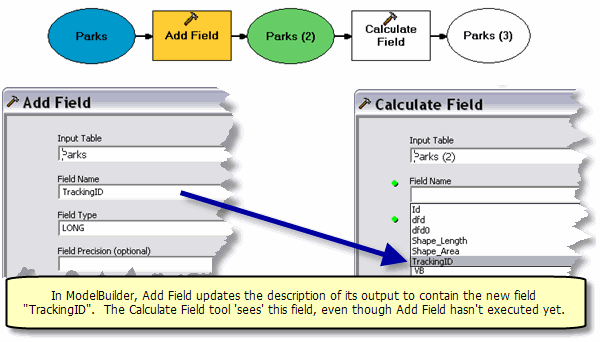
All tools should update the description of their output data for use in ModelBuilder. By updating the description, subsequent processes in ModelBuilder can see pending changes to data before any process is run. The two examples below show how subsequent processes see pending changes.
The first example shows a model containing the Add Field and Calculate Field tools. In Add Field, the output data variable, Parks (2), is updated to contain the new field, TrackingID. Because the output is updated, the Calculate Field dialog shows TrackingID in the list of field names.
The next illustration shows a model where the output of the Clip tool is used as input to the Polygon to Raster tool. Since the Clip tool simply "cookie cuts" the input features, the output feature class has all the same properties as the input feature class with one notable exception: its geographic extent. The geographic extent of the output feature class is the geometric intersection of the input and clip features extents. The Polygon to Raster tool uses the new geographic extent to determine a default cellsize.
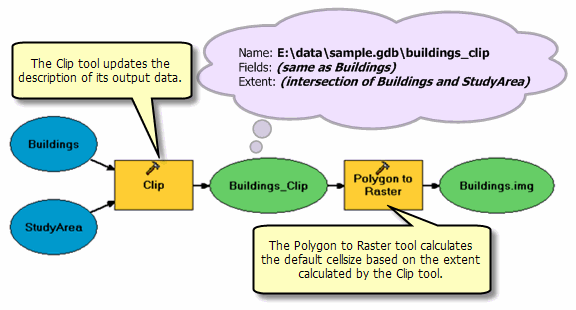
Within the ToolValidator class, you can use a Schema object to set rules for building the description of the output. For example, you can set rules such as the following:
- Make a copy of the input dataset description and add a new field to its list of fields (like Add Field), or add a list of fixed fields (like Add XY Coordinates).
- Set the list of output fields to be all the fields in a collection of datasets and, optionally, add fields to contain the feature IDs from the collection of datasets (like Union and Intersect).
- Set the extent to that of a dataset in another parameter, or the union or intersection (like Clip) of datasets in a list of parameters.
- Set a specific geometry type (point, line, polygon), or set it to that of a dataset in another parameter or to minimum or maximum type in a list of parameters. The definition of minimum and maximum geometry type is points = 0, polylines = 1, polygons = 2. So, the minimum geometry type in the set {point, polyline, polygon} is point and the maximum is polygon.
Output parameters have a schema object
The Schema object is created for you by geoprocessing. Every output parameter of type feature class, table, raster, or workspace has a schema object. Only feature class, table, raster, and workspace output data types have a schema—other data types do not. You access this schema through the parameter object and set the rules for describing the output. On return from updateParameters(), the internal validation routine examines the rules you set and updates the description of the output.
Setting dependencies
Whenever you create a rule like "copy the fields of the dataset in parameter 3, then add a field," you have to tell the Schema object what parameter you want to copy from (parameter 3). This is done by adding dependencies to the parameter object. You can add more than one dependency.
def initializeParameters(self):
  # Set the dependencies for the output and its schema properties
  #
  self.params[2].ParameterDependencies = [0, 1]
ParameterDependencies takes a Python list.
View some examples of using Python lists
The examples that follow show setting and using dependencies.
Setting dependencies examples: Clip and Add Field
Recall that Clip makes a copy of the input features definition and then sets the extent to the intersection of the input features and the clip features. Following is an example of how this rule is implemented in ToolValidator. (Because Clip is a system function and not a script, it doesn't use a Python ToolValidator class. System functions do their validation using internal routines that are essentially the same as ToolValidator. But if it did use a Python ToolValidator class, this is what it would look like.)
def initializeParameters(self):
  # Set the dependencies for the output and its schema properties
  #
  self.params[2].ParameterDependencies = [0, 1]

  # Feature type, geometry type, and fields all come from the first
  #  dependent (parameter 0), the input features
  #
  self.params[2].Schema.FeatureTypeRule = "FirstDependency"
  self.params[2].Schema.GeometryTypeRule = "FirstDependency"
  self.params[2].Schema.FieldsRule = "FirstDependency"

  # The extent of the output is the intersection of the input features and
  #  the clip features (parameter 1)
  #
  self.params[2].Schema.ExtentRule = "Intersection"

  return

def updateParameter(self):
  return
Add Field copies the definition of an input parameter and adds the user-specified field. The link below shows how Add Field would be implemented in ToolValidator.
View example of using AdditionalFields
Setting schema in initializeParameters() versus updateParameters()
Note that the Clip example above modifies the Schema object in initializeParameters() and that updateParameters() does nothing but return. Add Field, on the other hand, has to modify the Schema object in updateParameters() because it doesn't know the definition of the field to add until the user provides the information (and updateParameters() is called).
You can think of these two cases as static versus dynamic. Clip doesn't rely on anything but the datasets found in the dependent parameters (static case), whereas Add Field needs to examine other parameters (such as field name and field type) that are not dependent parameters (dynamic case).
This static and dynamic behavior is evident in the way a ToolValidator class is called, as follows:
- When the tool dialog is first opened, initializeParameters() is called. You set up the static rules for describing the output. No output description is created at this time since the user hasn't specified values for any of the parameters.
- Once the user interacts with the tool dialog in any way, updateParameters() is called.
- updateParameters() can modify the Schema to account for dynamic behavior that can't be determined from the parameter dependencies, such as adding a new field like Add Field.
- After returning from updateParameters(), the internal validation routines are called and the rules found in the Schema object are applied to update the description of the output data.
- updateMessages() is then called. You can examine the warning and error messages that internal validation may have created and modify them or add warnings and errors.
Output dataset name: Cloning derived output versus required output
When you set the Schema.Clone property to true, you are instructing geoprocessing to make an exact copy (clone) of the description in the first dependent parameter in the parameter dependency list. Typically, you set Clone to true in initializeParameters() rather than updateParameters() since it only needs to be set once.
If the ParameterType of the output parameter is set to Derived, an exact copy is made. This is the behavior of the Add Field tool.
If the ParameterType is set to Required, an exact copy is also made, but the catalog path to the dataset is changed. Since most tools create new data, this is the most common behavior.
Learning more
Programming a ToolValidator class provides details on the Parameter, Schema, and Filter objects and gives code examples.
All script-based system tools, such as Multiple Ring Buffer, have ToolValidator code that you can examine and learn from. Many of the tools in the Spatial Statistics toolbox are script tools and have ToolValidator implementation you can examine.
Alas, you'll make mistakes in your ToolValidator implementation—either syntax, runtime, or logic errors. Debugging a ToolValidator class shows you how geoprocessing traps and reports errors and gives you some strategies for debugging.