How to add a WMS service layer to ArcMap |
|
|
Release 9.3
Last modified August 6, 2010 |


|
Note:
This topic was updated for 9.3.1.
Here are the steps used to add a WMS layer in ArcMap.
Steps
- Click the Add Data button
 .
.
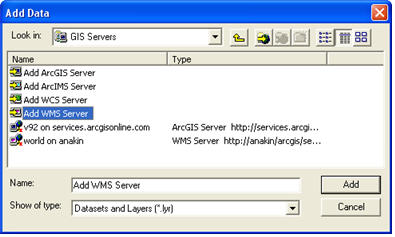
- Click the Look in drop-down arrow and navigate to the GIS Servers folder.
- Double-click GIS Servers. This will give you a list of servers you have previously used.
- If you don't see the WMS server you want, double-click Add WMS Server, as shown below, and enter the URL pathname to the WMS service to establish a connection.
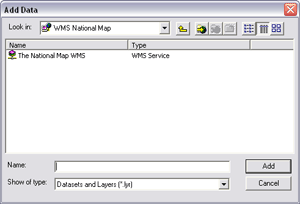
- Select the WMS service you want to use, and open it in ArcMap.
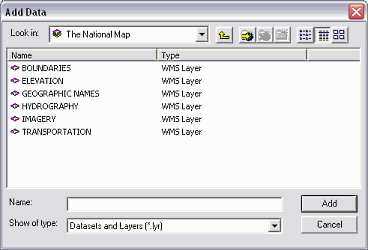
- If you want to add a specific subset of WMS sublayers, double-click the WMS service to display its sublayers and click the layer you want to add to the include it in your Add list. You can select a number of layers to add by hitting Shift-Click on each sublayer, or you can select and add individual layers by hitting Ctrl-Click. Then, click Add to add them to your map.
NOTE: A WMS service doesn't define which of its layers appear turned on when you initially access it. ArcGIS automatically turns on the first 20 layers in any WMS service you add to a map or preview in ArcCatalog. In this way, you are likely to see something useful when you first add the service to a map.
WMS symbology and legend information
When a WMS service includes legend information, you can view the WMS sublayer's symbology in the table of contents by clicking the expansion control next to a layer in the service. The legends for the layers in WMS services are all hidden by default in the table of contents, since accessing a legend for one layer in a WMS service requires sending a request to the server. For each additional layer, it is an additional request to the server. Having the symbol information expanded by default for all the layers in a service would take too long, as each request has to be sent separately.
Some WMS services do not include legend information about the symbols used by the layers in the service. When legend information is not available, no symbology is shown for the layers in the table of contents. These layers will be listed in the table of contents without expansion controls next to them.
The size of WMS legends can vary greatly. Sometimes the size of the legend specified by the server is too large to be displayed in the ArcMap table of contents. This usually happens when the legend for a layer contains multiple symbols such as a transportation layer displaying symbology for the different types of roads. With WMS services, the legends for layers are transmitted over the Internet as one image containing all the symbols. Although ArcMap supports legend entries with multiple symbols in its table of contents, ArcMap expects these entries to contain multiple images, one image per symbol. ArcMap also places a limit on the size, height, and width (in pixels) of an image it will display in the table of contents. When the image received for a layer in a WMS service exceeds this limit, no legend is displayed for the layer. These layers are therefore listed in the table of contents without symbology and without expansion controls.
In some cases, the WMS legend is too large to display in the ArcMap table of contents. When a WMS legend is available but does not display in the table of contents, you can view the legend on the Styles tab of the WMS sublayer's Layer Properties dialog box.
Properties of WMS services
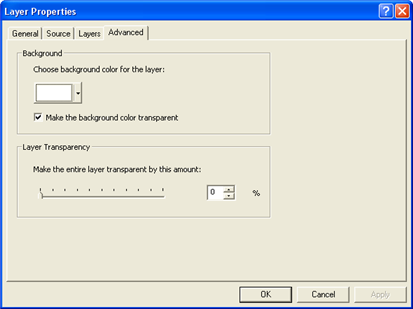
The Layer Properties dialog box for a WMS service (top of the hierarchy) has four tabs: General, Source, Layers, and Advanced.
From the General tab, you can view or change the service layer name, description, and visible scale range. The Description text box is initially populated with an abstract, when one is provided by the service. You can change the description for WMS service layers, but the Description text box for group and WMS sublayers within the WMS service are read-only. You can also set a scale range for the service layer, which will be respected by all WMS sublayers within the service layer.
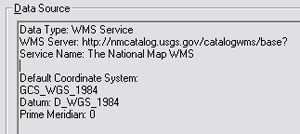
The Source tab provides information about the WMS service layer. This includes the service's extent, type, URL, name, and default coordinate system.
The Layers tab displays all the members of the WMS service. Information provided by the WMS server for each WMS layer is displayed in a box on the lower left of the dialog box. From this dialog box, you can choose which WMS service sublayers to display in your map. You can also control layer visibility and drawing order.

The Advanced tab allows you to change the transparency properties of the WMS service—by changing the background color and setting transparency.
Properties of WMS service sublayers
The Layer Properties dialog box for a WMS service sublayer has three tabs: General, Source, and Styles.
On the General tab, you can check the Visibility box to change whether or not a WMS sublayer displays on the map. All other information, including layer name, description, and scale ranges, is read-only.
Visible scale ranges for WMS sublayers are supported in ArcMap. As with other layers with a visible scale range, the table of contents check box for the sublayer will be gray with a dimmed scale bar underneath it when the sublayer is not being drawn because the current map scale is outside the scale range. However, not all WMS services provide scale range information, even though the layer may have a scale range set in the service and will not draw at scales outside this range. When this information isn't provided by the WMS server, ArcMap can't show the scale range on the Layer Properties dialog box, and the layer's check box will be available in the table of contents.
The Source tab provides information about each WMS service sublayer. This includes the URL for the WMS service, the service's name, the layer name, the capabilities of the sublayer (whether or not the layer supports query or identify), whether a legend is available for the sublayer, the default coordinate system, and a list of server-supported coordinate systems for this particular sublayer.
The layer name shown may not be the same as what is in the table of contents and on the General tab. This is because the text used for the layer name on the Source tab is taken from the <Name> tag in the WMS service capabilities file, which is the file used to describe the service. However, ArcMap uses the more descriptive <Title> tag from the capabilities file to populate the layer name for the table of contents and the General tab.
The rendering of a WMS sublayer is determined by a style. The WMS specification allows a WMS layer to contain a list of styles in which the layer can be rendered. The WMS server may make the style symbology available to the user as a legend. If the WMS service supports legends, you can use the Styles tab to preview a WMS service sublayer's legend. If the sublayer has multiple styles listed in the service capabilities, you can use the Styles tab to choose the style you want.
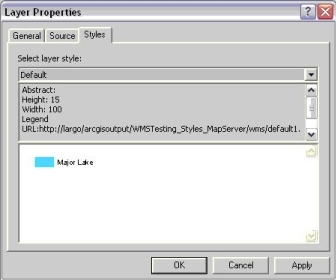
The Styles tab also includes information describing the given style, the height and width of the legend image in pixels, the URL for the legend image, and the image format.
How WMS server errors are handled
You may sometimes get an error message from particular WMS services when you add them into a map. As with any live Web mapping service based on images, when ArcMap attempts to draw a WMS service in a map, it sends a request for an image to the WMS server providing that service. If the server returns an error instead of an image, ArcMap will display that error message. These error messages, which appear each time you redraw the map, reflect problems with the WMS service and normally can't be remedied in ArcMap. ArcMap displays these messages to warn you that something about the WMS service is not working as ArcMap expects and also to provide a basic diagnostic capability. However, because these errors can vary widely between different WMS servers, it is difficult for ArcMap to tell you the exact problem. As a result, the error messages are fairly generic, and what the problem is may not be obvious. For example, the error may be caused by a particular layer belonging to the WMS service or to a particular combination of layers.
If you get an error message, you can stop it from appearing again by simply unchecking the WMS service in the table of contents or removing it from your map. Sometimes, you may be able to tell which layer in the WMS service is causing the problem. In that case, try turning off that particular layer in the table of contents to prevent the error message from appearing.
Note that if you get an error message from a WMS service, it doesn't necessarily mean that you won't be able to draw this service in your map at all. For example, some WMS services may return the error "Bounding box has an invalid area" when you try to draw them at a very small scale, but the service will draw and the error message won't appear when you zoom in to larger scales. In this situation, you should specify a scale range for the WMS service layer using the General tab of its Layer Properties dialog box so the layer is not drawn at very small scales. This will prevent the error messages from appearing when the layer can't be drawn.