Performance tuning for displaying raster data |
|
|
Release 9.3
Last modified November 12, 2009 |


|
Note:
This topic was updated for 9.3.1.
Different formats of raster data use different mechanisms to improve access speed. ArcGIS makes these formats behave in a similar manner so the end user is required to know little about a particular format. Because raster datasets can be very large, these added abilities are oriented toward tuning display performance.
Creation of pyramids
The best way to improve the display speed of a large image is to build pyramids for it. Pyramids are downsampled versions of an image that ArcGIS can create and manage. Pyramids are useful when the raster dataset is larger in rows and columns than the screen canvas you are trying to paint. Without pyramids, the entire dataset must be read from disk and resampled to a smaller size. This is resampling and occurs on refresh of the ArcCatalog Preview tab or the ArcMap display canvas.
Pyramids decrease the amount of time spent reading from disk and processing. Taking the time to create pyramids once will save time in the long run. Pyramid information is stored in a reduced-resolution dataset (RRD) file and is 8 percent of the original decompressed file size. You can build pyramids from the raster context menu in ArcCatalog. For more information on pyramids, see Raster pyramids.
Calculation of statistics
When a raster without previously stored statistics is introduced in ArcMap and statistics are needed to render the raster correctly, ArcMap functions create default statistics and place these into an associated auxiliary (AUX) file. If this occurs, time is needed for the default statistics calculation. Creating statistics for rasters in ArcCatalog prior to their use in ArcMap is recommended. For more information on calculating statistics, see Raster dataset statistics.
Display resampling
Resampling your raster dataset alters the way in which the raster dataset is displayed. Resampling is the process of extrapolating new cell values while transforming your raster dataset when it undergoes a geoprocessing function or when it changes coordinate space.
The four most common resampling techniques are nearest neighbor, bilinear interpolation, cubic convolution, and majority. By default, ArcMap uses the most efficient resampling technique, nearest neighbor resampling.
For discrete raster datasets, such as those found in classified imagery including land-use maps or soil maps, the nearest neighbor and majority resampling algorithms are most appropriate. Nearest neighbor assigns the closest cell value to the pixel. Majority assigns the most popular value within the filter window, giving a smoother look.
For continuous raster datasets, such as a satellite image, an elevation model, or aerial photos, bilinear interpolation or cubic convolution is more appropriate. Bilinear interpolation creates a smooth-looking result. Cubic convolution creates a sharper-looking result but takes more processing time.
For certain raster formats (see File Group Two) that have color maps, a bilinear interpolation resampling is possible. The process in this display resampling method requires the pixels to be converted to an RGB value, then use the resampling method.
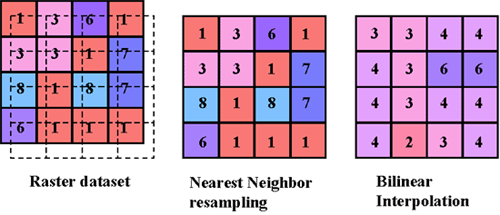
The diagram below shows an example of display resampling. The image on the left shows the original raster and the new position of the raster (outline of the raster). The center image shows how the nearest neighbor resampling technique would resample the data. The image on the right shows how bilinear interpolation would resample the raster.
Raster compression
Compression can improve performance by reducing the amount of time spent reading from disk. However, since compressed data must be decompressed to draw to the screen, it can be slower than decompressed data. The amount of time spent on decompression is often related to the compression ratio. The more highly compressed the raster, the longer it takes to decompress. There are three types of compression available in a file geodatabase or an ArcSDE geodatabase for raster data: LZ77, JPEG, and JPEG 2000. For more information about raster compression, see Raster compression.
For information on MrSID compression, see About MrSID rasters.
Tile size
NOTE: This function is only available with the file geodatabase and ArcSDE.
The tile size is used to control the number of pixels, specified in rows and columns, stored in each tile (or block). Each tile is stored as a binary large object (BLOB). By default, the tile size is 128 by 128 pixels, but the default can be modified by the user if necessary. The tile size does not tend to significantly affect performance.
ArcSDE raster for multiuser access
When many users are accessing the same raster files simultaneously, you will get better performance from a properly tuned relational database than from a file in a file system. ArcSDE supports storing raster data in a relational database.
Learn about loading and importing rasters into ArcSDE.