|
Using the Version Changes command (ArcInfo and ArcEditor only) |
|
| Release 9.3 |    |
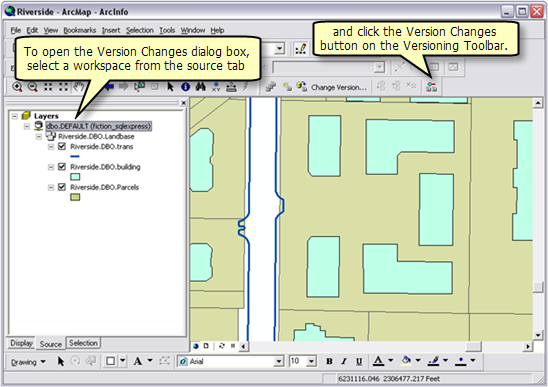
 on the Versioning toolbar.
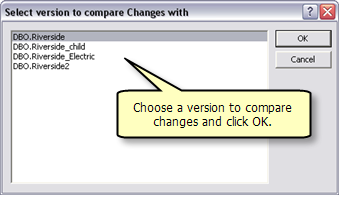
 The next step is to choose a version for comparing changes. The available versions listed are those in ancestral lineage with the version previously selected on the source tab. If the DEFAULT version is the selected version, all accessible versions will be listed on the dialog box because they are all descendant versions from the DEFAULT version.
If you have started an edit session and you choose the version you are currently editing, the dialog box will present all changes that have been made during the current edit session.
The next step is to choose a version for comparing changes. The available versions listed are those in ancestral lineage with the version previously selected on the source tab. If the DEFAULT version is the selected version, all accessible versions will be listed on the dialog box because they are all descendant versions from the DEFAULT version.
If you have started an edit session and you choose the version you are currently editing, the dialog box will present all changes that have been made during the current edit session.
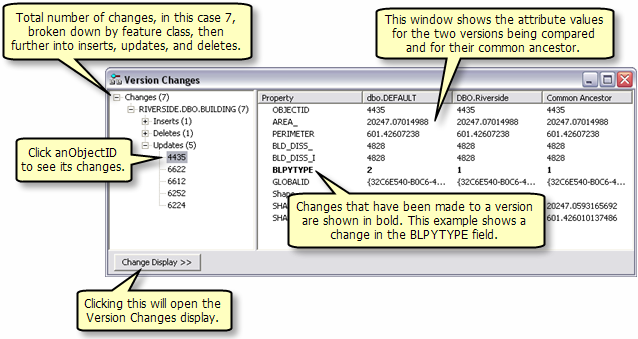
 The Version Changes dialog box displays the number of changes that have been made to the version from the time it and the chosen target version were identical. The number of changes is subdivided by class, then subdivided into Insert, Delete, and Update categories. Clicking an ObjectID number shows its changes in the right window. All the attribute values for the two versions being compared and for their common ancestor are displayed. Attribute values displayed in bold signify that a change has been made to the version for that attribute.
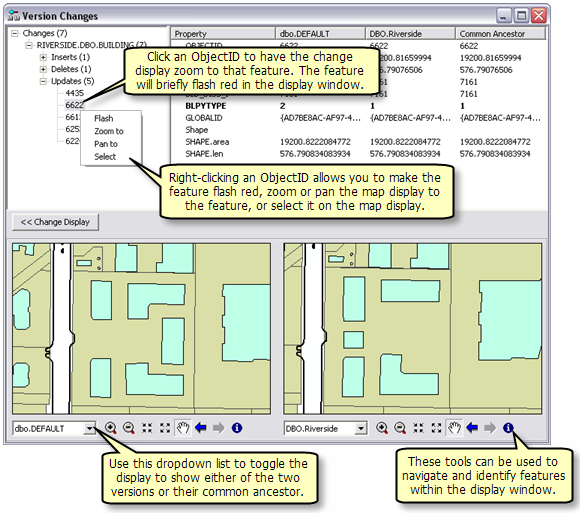
 Clicking the Change Display button opens the Change display viewer. This allows you to view the changes as they appear on the map, as well as navigate and identify features in the display. You can toggle the display to show either of the two versions as well as their common ancestor.
Right-clicking a class displays a menu with the following options:
Clicking the Change Display button opens the Change display viewer. This allows you to view the changes as they appear on the map, as well as navigate and identify features in the display. You can toggle the display to show either of the two versions as well as their common ancestor.
Right-clicking a class displays a menu with the following options: