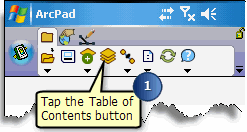
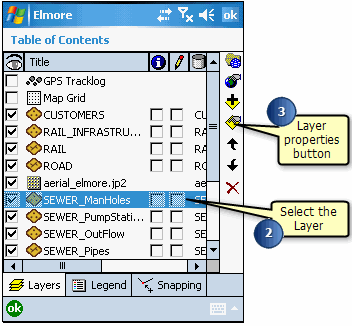
Open the Layer Properties dialog box by either doubletapping on the selected
layer or tapping the Layer Properties button.
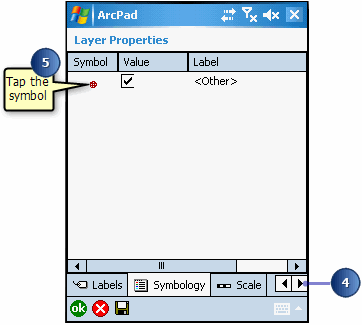
Tap the arrows to navigate to the Symbology page.
Tap the displayed symbol. The Symbol Properties dialog box opens.
Tap the Point Style page on the Symbol Properties dialog box.
There are also Line and Polygon Style pages to set the style for line and
polygon layers, respectively.
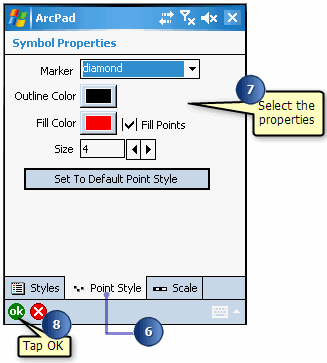
Select the marker type and set the outline and fill color, and the size of the
point symbol.
Tap OK on the Symbol Properties dialog box.
Tap OK on the Layer Properties dialog box.
Tip
Set to Default Style : If you tap Set to Default Point
(Line, Polygon) Style, ArcPad will set the point (or line or polygon) marker
to the default settings. You can then make any necessary adjustments to the
default.