The Geoportal that is implemented out-of-the-box is meant to be a site starter and sample application. It is strongly recommended that all users make certain modifications to their Geoportal instance prior to going live on a production system
Below, a few of the most important suggested actions are discussed.
--------------------------
Customize the User Interface for your Organization's Look and Feel
One of the first activities that you should pursue with respects to your new Geoportal instance is to customize it - to make it look like your own, and to match its look & feel with that of other web pages in your organization.
For detailed information on customizing the User Interface, please refer to the section on
Geoportal Customizations.
--------------------------
Modify Default Usernames and Passwords
If you followed the
installation guide closely during your Geoportal setup, you are likely using default usernames and passwords as outlined in the installation guide, or defaulted in the gpt.xml configuration file.
If you leave the defaults as they are, your Geoportal is vulnerable for manipulation by anyone else that also has a Geoportal instance, since they are knowledgeable as to the default username and password settings.
It is therefore strongly recommended that once your Geoportal goes into production, you reset the default usernames and password, so as to secure your Portal from uninvited users. It is also recommended to encrypt passwords in your Geoportal configuration files. To encrypt passwords please see the section titled
Encryption Concepts.
--------------------------
Schedule Synchronization
The scheduling of geoportal synchronizers is very important to the performance of your geoportal. Only one thread - which is run by a synchronizer - can run at a time. If one of the synchronizers is running, and another is scheduled to start, the second synchronizer will not be able to start. Instead, it will wait until its next scheduled time and attempt to start again. In this section, we discuss three synchronization activities, why they are important, and how to schedule them.
-
Catalog Synchronization
The Geoportal extension's lucene index must be synchronized with the Geoportal's metadata catalog for records to be searchable. Catalog synchronization does not happen every time a record is published or updated in the geoportal; instead, it takes place at a specified time interval defined in the gpt.xml file in the <thread> element for catalog synchronization (<thread class="com.esri.gpt.catalog.context.CatalogSynchronizer").
The amount of time required to synchronize the lucene index and the catalog is related to the size of your metadata database. For example, if the catalog contains 3,000 records, it will synchronize much faster than if it contains 300,000 records. You can find out how much time is required to synchronize your geoportal catalog by looking at the gpt.<date>.log files, and seeing the "CatalogSynchronizer run started..." and CatalogSynchronizer run completed" timestamps. For larger catalogs, it may improve performance to synchronize the catalog less often.
-
Lucene Index Optimization
The lucene index optimizer rewrites the lucene index, which results in faster searches. If the lucene index is never optimized, then performance will deteriorate over time. It is defined in the gpt.xml file in the <thread> element for lucene optimization <thread class="com.esri.gpt.catalog.lucene.LuceneIndexOptimizer"). It is configured to start at a specific time once a day.
-
ArcGIS Server Synchronization (optional)
Another synchronization activity is the optional AGSSynchronizer. The AGSSynchronizer will synchronize metadata records from a specific ArcGIS Server instance in the geoportal catalog with the ArcGIS Server instance from which they were published. Note: Instructions for configuring an ArcGIS Server instance to be synchronized are in the Scheduler Settings section of Section 8 in the Geoportal extension Installation Guide. This synchronization occurs at a specified time interval defined in the gpt.xml file in one or more ArcGIS Server Synchronizer thread parameters (<thread class="com.esri.gpt.catalog.arcgis.metadata.AGSSynchronizer">). An ArcGIS Server Synchronizer that is mapped to an ArcGIS Server instance that hosts many services will take longer to run than an ArcGIS Server Synchronizer mapped to an ArcGIS Server instance with few services.
An important post-deployment activity is to consider your CatalogSynchronizer, LuceneIndexOptimizer, and (optionally-configured) AGSSynchronizer thread time attributes. Make sure that none of these are configured to start at the same time. Additionally, because there can be multiple AGSSynchronizer threads it is important to make sure that AGSSynchronizer threads have staggered start times. This can be done by configuring the
delay attribute in the AGSSynchronizer <thread> element.
--------------------------
Register the Geoportal Sitemap with Search Engines
A sitemap is an xml file that shows the structure of a website, and provides additional information on the pages within the site. If a sitemap is submitted to search engines - such as Google, Yahoo!, or Microsoft - users may be able to find records from the Geoportal by using these search engines directly.
Sitemap.org has a helpful page on
how to submit your sitemap. Only public records are included in the sitemap.
The Geoportal extension automatically provides a sitemap file for your organization's deployed Geoportal. See the default sitemap by pasting the following in a web browser, replacing the 'host' with your web server's name, the 'port' with your servlet engine port number, and the 'contextPath' with the name of your geoportal web application ("geoportal" by default).
http://host:port/contextPath/sitemap
After accessing this url, register the response with a search engine of your choice.
You can modify the following sitemap settings in the <TOMCAT>/webapps/geoportal/WEB-INF/classes/gpt/config/gpt.xml file. More details for each of these parameters are found in the comments within the gpt.xml file.
- sitemap.baseUrl: the base URL for sitemap files
- sitemap.documentUrlPattern: the URL pattern referencing documents within a sitemap
- sitemap.urlsPerIndexFile: the maximum number of sitemap files to be referenced within the sitemap index file
- sitemap.urlsPerSitemapFile: the maximum number of documents to be referenced within an individual sitemap file
- sitemap.namespaceUri: the sitemap namespace URI, default = http://www.sitemaps.org/schemas/sitemap/0.9
- sitemap.changefreg: the change frequency to be listed per document reference
- sitemap.priority: the priority to be listed per document reference, 0.0 -> 1.0
--------------------------
Expose the Geoportal to OpenSearch
The Geoportal is exposed through
OpenSearch, which means that certain browsers - such as Mozilla Firefox 3 and Internet Explorer 7 and 8- will support searching the Geoportal as a search provider directly from the browser. Results will be returned as a georss feed - a list of metadata documents matching your search criteria. This provides greater accessibility of your Geoportal to users, especially those who visit often and may not want to launch the Geoportal search page every time they search for metadata. For more information on Geoportal OpenSearch, see
Add the Geoportal Search to a List of Search Providers.
Because users may have many search providers registered with their browser, the name of your Geoportal search provider should be distinguishable.
The image below shows the default name of the Geoportal Search provider.
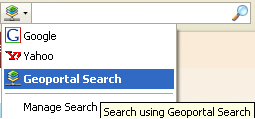
To change the name that will appear in the list of search providers, do the following:
- Navigate to the \\geoportal\WEB-INF\classes\gpt\resources folder.
- Open gpt.properties in a text editor.
- Find the line that reads "OpenSearch resources".
- In the "catalog.openSearch.shortName" parameter, change the associated "GPT9 Search" text to read something specific to your organization. This is the name that will appear in the list of search providers in the browser interface by default. For example, a good shortName parameter may include the name of your organization.
- You can also change the text associated with the "catalog.openSearch.description" parameter to match a description specific to your organization.
- Save the gpt.properties file.
- Restart Tomcat.
--------------------------
Update the CS-W Service Provider Information
When you first access your Geoportal's CS-W service through the GetCapabilities request - sample shown below - you will see a list of the capabilities of the service.
http://serverName:portNumber/geoportal/csw/discovery?Request=GetCapabilities&Service=CSW&Version=2.0.2
You will also see information about the service, such as what organization is providing the service and keywords. To customize this information for your organization, navigate to the \\geoportal\WEB-INF\classes\gpt\metadata directory on your Geoportal server and edit the "cswCapabilities.xml" file accordingly. Restart your geoportal web application, and the next time you access the GetCapabilities request, you should see your updated provider information in the response.


