Add Custom Search Criteria


Add Custom Search Criteria |
|
| Release 9.3.1 |
|
In the geoportal, it is possible to filter search results based on certain metadata elements. For example, you can retrieve documents with specific terms in the title by prefixing the search query in the Search field with 'title:'. This is enabled by the Lucene index, which classifies information in a metadata element with a heading by which a user would search. Search syntax is further discussed in Geoportal Search.
It is possible to configure searching by a specific metadata element. For example, you can configure the geoportal to support searching by Point of Contact Organization Name. In that case, the user could type 'POC:whateverName' in the search field, and retrieve only results that had 'whateverName' listed in the Point of Contact Organization Name metadata element.
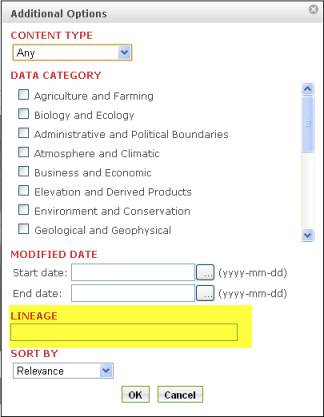
It is also possible to add this customized element search as a search filter in the list of available search options shown in the Additional Options dialog on the Search page. This document will describe first designate a specific element for search, and then how to add this search to the Additional Options dialog.
Note that when you add the customize search criteria, you can also search the custom field using lucene syntax in the CS-W interface. However, adding the custom field does not alter the geoportal's GetCapabilities operation; the only properties explicitly listed in the Geoportal extension's GetCapabilities are the spatial predicates (e.g., BBOX, Intersects, Within).
This section assumes that you have an initial understanding of the geoportal's property-meanings.xml file and how Lucene indexing works in the geoportal . In this example, you will configure the geoportal to index an element from the INSPIRE metadata schema, as defined by the INSPIRE-19115-definition.xml file. Note: This customization does not require the Geoportal extension source code; however, you will be creating a new java class in this customization, so java programming knowledge is recommended. If you use an integrated development environment (IDE, such as Eclipse) to compile the new class, remember to import the geoportal.war file into your project as you develop.
<property-meaning name="lineage" valueType="String" comparisonType="terms"></property-meaning>
<property-meaning name="lineage" valueType="String" comparisonType="terms">
    <dc name="dc:lineage" aliases="lineage"/>
</property-meaning>
<parameter key="dataQualityInfo.lineage" meaning="lineage" >
      <label resourceKey="catalog.mdParam.inspire.dataQualityInfo.lineage"/>
      <input type="textArea"/>
      <validation required="false"/>
      <content useSelectForUpdate="true"
   select="/gmd:MD_Metadata/gmd:dataQualityInfo/gmd:DQ_DataQuality/gmd:lineage/gmd:LI_Lineage/gmd:statement/gco:CharacterString"
   delete="/gmd:MD_Metadata/gmd:dataQualityInfo/gmd:DQ_DataQuality/gmd:lineage"/>    </parameter>

In this task, you will prepare your search element for search and display in the Additional Options dialog. Note that in this example, our new searchable element, lineage, is a text field. If your new element is a date field or a multiselect field, the steps below should be adapted to the type of the field.
SearchFilter<name_of_your_indexing_field>.java. The code shown below is an example of a class that could be used for adding our example lineage element. After you author and compile the new class, put the resulting class file into the \\geoportal\WEB-INF\classes\gpt\search\ directory.package gpt.search;
import com.esri.gpt.catalog.search.ISearchFilter;
import com.esri.gpt.catalog.search.SearchException;
import com.esri.gpt.catalog.search.SearchParameterMap;
import com.esri.gpt.catalog.search.SearchParameterMap.Value;
import com.esri.gpt.csw.Utils;
@SuppressWarnings("serial")
public class SearchFilterLineage implements ISearchFilter {
// key to be used to serialize class to a map
private static String KEY_LINEAGE = "lineage";
// instance variable
private String lineage;
// property (Can be used by jsf(advanced search page)
public String getLineage() {
return Utils.chkStr(lineage);
}
// property (Can be used by jsf(advanced search page)
public void setLineage(String lineage) {
this.lineage = lineage;
}
// Serialize class instance into a map
public SearchParameterMap getParams() {
SearchParameterMap map = new SearchParameterMap();
map.put(KEY_LINEAGE, map.new Value(this.getLineage(), ""));
return map;
}
// The class may receive a new map for deserialization (e.g. saved searches
// can trigger this
public void setParams(SearchParameterMap parameterMap) throws SearchException {
Value val = parameterMap.get(KEY_LINEAGE);
this.setLineage(val.getParamValue());
}
// Deep comparison of filters
public boolean isEquals(Object obj) {
if (obj instanceof SearchFilterLineage) {
return ((SearchFilterLineage) obj).getLineage().equals(this.getLineage());
}
return false;
}
// This will be called by the clear button
public void reset() {
this.setLineage("");
}
// Before search, validate will be called. An exception can be thrown
// that will stop the search and the error is displayed on the search page
public void validate() throws SearchException {
if (this.getLineage().equals("this should throw an exception")) {
throw new SearchException("this should throw an exception");
}
}
}
  <!--managed bean for lineage search -->


  <managed-bean>


    <description>Search Filter with lineage properties</description>


    <managed-bean-name>SearchFilterLineage</managed-bean-name>


    <managed-bean-class>gpt.search.SearchFilterLineage</managed-bean-class>


    <managed-bean-scope>session</managed-bean-scope>


</managed-bean>
<managed-property>


    	<property-name>miscelleniousFilters</property-name>


    	<property-class>


    	  com.esri.gpt.catalog.search.SearchFiltersList


      </property-class>


    	<list-entries>


    		<value-class>


    		  com.esri.gpt.catalog.search.ISearchFilter


            </value-class>


    		<value>#{SearchFilterHarvestSites}</value>


    		<value>#{SearchFilterLineage}</value>


    	</list-entries>


 </managed-property>
<!--
##########################################################################################################################
Filter: Lineage Filter templates, added as customization 08/27/09 -->
<!--
***********************************************************************************************************************************************************************************
Template filter Lineage
Outputs CSW lineage parameters
************************************************************************************************************************************************************************************** -->
<xsl:template name="filterLineage" xmlns:ogc="http://www.opengis.net/ogc">
<xsl:variable name="rootFilterLineage"
select="//filter[@class='gpt.search.SearchFilterLineage']"/>
<xsl:variable name="lineage"
select="normalize-space($rootFilterLineage/param[@name='lineage']/@value)"/>
<xsl:choose>
<xsl:when test="string-length($lineage) > 0 and contains($lineage, ' ')">
<ogc:Or>
<xsl:call-template name="tokenize">
<xsl:with-param name="sentence" select="$lineage"/>
<xsl:with-param name="templateName" select="'filterLineageLikeAnytext'"/>
</xsl:call-template>
</ogc:Or>
</xsl:when>
<xsl:when test="string-length($lineage) > 0">
<xsl:call-template name="tokenize">
<xsl:with-param name="sentence" select="$lineage"/>
<xsl:with-param name="templateName" select="'filterLineageLikeAnytext'"/>
</xsl:call-template>
</xsl:when>
</xsl:choose>
</xsl:template>
<!-- Template filterLineageLikeAnytext-->
<xsl:template name="filterLineageLikeAnytext"
xmlns:ogc="http://www.opengis.net/ogc">
<xsl:param name="word"/>
<xsl:param name="wildcard"/>
<xsl:if test="string-length(normalize-space($word)) > 0">
<ogc:PropertyIsLike>
<xsl:attribute name="wildCard">
<xsl:value-of select="$searchTextWildCardCharacter"/>
</xsl:attribute>
<xsl:attribute name="escape">
<xsl:value-of select="$searchTextEscapeCharacter"/>
</xsl:attribute>
<xsl:attribute name="singleChar">
<xsl:value-of select="$searchTextSingleCharacter"/>
</xsl:attribute>
<ogc:PropertyName>lineage</ogc:PropertyName>
<ogc:Literal>
<xsl:value-of select="$wildcard"/>
<xsl:value-of select="normalize-space($word)"/>
<xsl:value-of select="$wildcard"/>
</ogc:Literal>
</ogc:PropertyIsLike>
</xsl:if>
</xsl:template>
<xsl:template name="tokenize">


    <xsl:param name="sentence"/>


    <xsl:param name="templateName"/>


    <xsl:param name="delimeter" select="' '"/>


    <xsl:param name="word"/>


    <xsl:param name="info"/>


    <!--


         If word more than 0 and template then call template otherwise print word -->


    <xsl:choose>


      <xsl:when test="string-length($word) > 0 and


string-length(normalize-space($templateName)) > 0">


        <xsl:choose>


          <!-- For this function,important to modify this section if you are using this function so that your template gets called -->


          <xsl:when test="$templateName = 'filterKeywordLikeAnytext'">


            <xsl:call-template name="filterKeywordLikeAnytext">


              <xsl:with-param name="word" select="$word"/>


              <xsl:with-param name="wildcard" select="$info"/>


            </xsl:call-template>


          </xsl:when>


          <xsl:when test="$templateName= 'filterThemeType' ">


            <xsl:call-template name="filterThemeType">


              <xsl:with-param name="theme" select="$word"/>


            </xsl:call-template>


          </xsl:when>


           <xsl:when test="$templateName= 'filterLineageLikeAnytext' ">


            <xsl:call-template name="filterLineageLikeAnytext">


              <xsl:with-param name="word" select="$word"/>


            </xsl:call-template>


          </xsl:when>


        </xsl:choose>


      </xsl:when>


      <xsl:when test="string-length($word) > 0">


        <xsl:value-of select="$word"/>


      </xsl:when>


    </xsl:choose>
<!--Template default -!>


…


<ogc:Filter xmlns:ogc="http://www.opengis.net/ogc">


            <ogc:And>


              <!-- Time Based Search -->


              <xsl:call-template name="filterTemporal"/>


              <!-- Key Word search -->


              <xsl:call-template name="filterKeyword"/>


              <!--  newly added -->


   <!-- Lineage search -->


              <xsl:call-template name="filterLineage"/>


              <!--  end added -->


              <!-- Content type search -->


              <xsl:call-template name="filterContentTypes"/>


              <!--  type search -->


              <xsl:call-template name="filterThemeTypes"/>


              <!-- Envelope search, e.g. ogc:BBOX -->


              <xsl:call-template name="filterSpatial"/>


            </ogc:And>


          </ogc:Filter>
<% // lineage (added) %>


   <h:outputText id="txtClearHtml" escape="false" value="<br/>"/>


<h:outputText escape="false" value="<h3>"/>


   <h:outputText id="scLblLineage" value="#{gptMsg['catalog.search.filterLineage.title']}" />


 <h:outputText escape="false" value="</h3>"/>


<h:inputText id="scLineage"  onchange="javascript:updateHiddenValue(this)" value="#{SearchFilterLineage.lineage}" maxlength="4000"


styleClass="searchBox" />
<h:outputText escape="false" value="</div>"/>


<h:inputHidden id="scSelSortHidden" value="#{SearchFilterSort.selectedSort}"/>


<h:inputHidden id="scDateToHidden" value="#{SearchFilterTemporal.dateModifiedTo}"/>


<h:inputHidden id="scDateFromHidden" value="#{SearchFilterTemporal.dateModifiedFrom}"/>


<h:inputHidden id="scSelContentHidden" value="#{SearchFilterContentTypes.selectedContentType}"/>


<h:inputHidden id="scSelThemeHidden" value="#{SearchFilterThemeTypes.selectedThemes}">


 <h:inputHidden id="scLineageHidden" value="#{SearchFilterLineage.lineage}"/>
catalog.search.filterLineage.title = Lineage