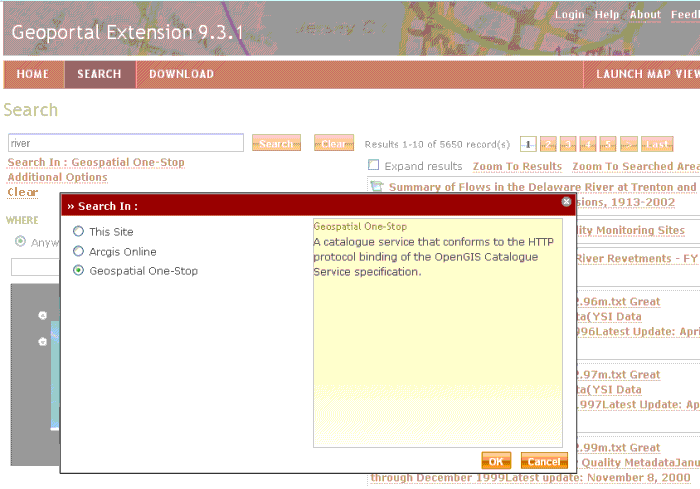
Filters on the Search Page
The Search page is activated when a user clicks on the "Search" link on the Geoportal extension main navigation bar. This page allows users to narrow search results by selecting their own filters. The filters described below can be removed from the search query by clicking the 'Clear' link on the Search interface.
- The first set of filters are the search term input box and the interactive map spatial extent search. Use the search term input box to input a term or lucene query.
- Use the interactive map's spatial extent search to define the spatial extent of the records to be returned from the search. The parameters for spatial search are:
- Anywhere: Search results will return records from any extent.
- Intersecting: Search results will return records that have some portion of their extent touching or included in the area defined in the search map.
- Fully within : Search results will return records that are fully contained in the area defined in the search map.
Tools that can be used to define the spatial search area are:
- Locate Tool: Type in a place name, and the geoportal will use a Gazetteer service to provide a list of places that have that name. Select a place from the list, and the search map will center on that place. Choose one of the above three methods to define the search extent based on the shown extent.
- Map Navigation Tools: Navigation tools to zoom in, zoom out, or pan the map can be used with any of the above methods to better refine the search extent. By clicking on the map and moving your mouse, the search map can be dragged to define a different extent. The mouse's wheel can also be used to zoom in or zoom out quickly.
The second set of filters are used to define searching this Geoportal site, or a different catalog. To search a different catalog, click the "Search In:" link and select one of the listed catalogs or ArcGIS Online services on the list. For more information, see Directed Search.
The third set of filters is available through the "Additional Options" link, just beneath the "Search In" link. The additional options are 1) content type of the resource, 2) data topic category, 3) the time period for when the metadata record was last modified, and 4) the order by which results are sorted. Note that when you apply a search filter, the geoportal filters results based on the metadata alone. This means that if the term is not found in the metadata, or that record's standard does not describe the search parameter upon which the filter is applied (data category, for example), it will not be returned in the results.
-
Content Type
searches return documents that are associated with one of eleven content types. Content Type is a designated property that the geoportal uses to identify what kind of resource the metadata describes. Some metadata standards have tags for content type, but in most cases, the geoportal uses its own logic to determine the content type of a resource. The eleven types are Live Map Services, Downloadable Data, Offline Data, Static Map Images, Documents, Applications, Geographic Services, Clearinghouses, Map Files, Geographic Activities, and Resource Undetermined (Unknown).
-
Data Category
refers to the nineteen topic categories defined in the ISO 19115 metadata standard. FGDC metadata has integrated the topic category concept into its own tags as well. Searching by data category will retrieve records that have the selected data category in its designated place in the metadata record's XML. Users can choose more than one data category by checking them in the search form list. Checking more than one box broadens the search; results will be returned from metadata records from any or all of the data categories selected.
-
Modified Dates
refer to the date the metadata record was last modified. This date is read from the metadata's datestamp in its XML. By designating a start date and an end date, the search will return records that have been modified during that designated time period.
-
Sorting Results:
Results are shown sorted by one of seven criteria from the metadata record's XML. Users can designate how results should be sorted by choosing one of the following from the "Sort By" drop down box:
- Relevance: If you have typed a search term in the search field at the top of the page, then results are sorted by relevance to that search term. If you have not typed in a search term but search on the other criteria (for example, a search based on just the Content Type), then the results are sorted by date in descending order.
- Title: Sorted by Title text in alphabetical order, with the "A's" at the top.
- Content Type: Sorted and grouped by Content Type, with Live Services at the top and Unknown at the bottom.
- Ascending Date: Sorted by date modified, with the most recent listed at the bottom.
- Descending Date: Sorted by date modified, with the most recent listed at the top of the list.
- Ascending Area: Sorted by the size of the spatial extent, with records having a smaller extent at the top.
- Descending Area: Sorted by the size of the spatial extent, with records having the largest extents at the top
.
Directed Search
Directed Search allows users to search many catalogs from within one Geoportal search interface. To use Directed Search, a user clicks the "Search In: This Site" link under the Search field on the Search page tab. Then the user selects one of the available catalogs. The "Search In:" link displays the selected catalog, and search results reflect records that are stored in that catalog. Note: Directed Search will only work with the catalogs that are exposed via CS-W.