Problems Connecting the Geoportal to a user directory LDAP


Problems Connecting the Geoportal to a user directory LDAP |
|
| Release 9.3.1 |
|
This section has two subtopics:
Listed below are important concepts to understand to configure your Geoportal with a user directory.
JXplorer is a widely used open source client for browsing a directory server. It is not an ESRI product, and Geoportal is not dependent on JXplorer. However, because it is freely available, and a directory server client is necessary for these troubleshooting steps, the instructions below assume you have installed and configured JXplorer.
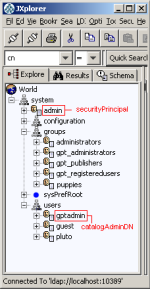
The LDAP directory is set up in a tree structure called the Directory Information Tree (DIT). The tree can have many branches, with users and groups defined as sub-branches. Below is a simple tree, with users located in the "system\users" branch, and groups located in the "system\groups" branch.
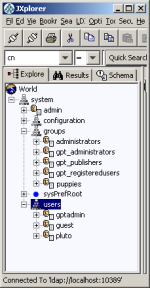
In most organizations, the DIT is more complex. There may be groups for different regions, authority levels, project teams, etc.
It is strongly recommended that the group structure created maps directly to the pre-defined Geoportal roles. If this is not possible, you will need to coordinate with your LDAP system administrator to decide what the best possible mapping is of your existing groups to the Geoportal roles.
Every user or group in the DIT has a unique identifier: its Distinguished Name (DN). An example of the DN for the 'gptadmin' user in the screenshot above is "cn=gptadmin,ou=users,ou=system". The DN is made up of a unique identifier (the "cn" part), and then the path that allows the Geoportal to navigate to that user or group within the DIT structure (the branches of the DIT, which are the "ou" parts). You can use JXplorer to copy the DN for a user or group in the DIT and populate the gpt.xml file with correct values. Connect to your LDAP with JXplorer, and then highlight the user or group whose DN you need with your mouse. Right click, and select the "Copy DN" option. You can now paste this value into your gpt.xml file. "Copy DN" can also be used when assigning users to groups within JXplorer itself.
When problems exist with LDAP information being passed into the Geoportal, in most cases one of the following is the cause:
---------------------------------------------
What to Do:
If the "users" branch of the LDAP Directory Information Tree (DIT) is not accessible to the Geoportal, then the users mapped to the groups cannot be located. This is a matter of having the correct values in the searchDIT parameters. The Geoportal may be able to find your groups, but it also needs to be able to find the users assigned to those groups.
What to Do:
The gpt.xml file has a section called "<ldapConnectionProperties>". Within that section, there is a <ldapServiceAccount> parameter where two users are defined. The two users are the securityPrincipal user and the catalogAdminDN user.
<ldapConnectionProperties
        providerURL="ldap://serverName:10389"
        initialContextFactoryName="com.sun.jndi.ldap.LdapCtxFactory"
        securityAuthentication="simple"
        securityProtocol="">
        <ldapServiceAccount
          securityPrincipal="uid=admin,ou=system"
          securityCredentials="secret"
          encrypted="false"
          catalogAdminDN="cn=gptadmin,ou=users,ou=system"/>
      </ldapConnectionProperties>
These two users have different functions, and do not have to be the same user.